MT5 One Click Trading Setup: Enable, Lot Size, Avoid Mis-Clicks
Do you lose time on a confirmation window with every MT5 order, or have you turned on one-click trading and still can't use it?
In short, enable One Click Trading on the "Trade" tab of "Tools" → "Options" and accept the agreement, and you can buy and sell without a confirmation window.
This article covers the steps to enable it, how to read the panel, what to check when it doesn't work, and habits that prevent mis-clicks, using only labels confirmed in MetaQuotes' official help.
Key takeaways
- MT5 One Click Trading is a feature that sends orders instantly, with no confirmation window.
- You enable it under "Tools" → "Options" → "Trade" tab, and you must accept an agreement the first time.
- Check the volume before every click, keep the volume small, and set a stop-loss right after a fill.
In short: MT5 One Click Trading sends orders instantly, with no confirmation window
- One Click Trading lets you buy, sell and more with one click, without showing a confirmation window (the trade dialog)
- You enable it under "Tools" → "Options" → "Trade" tab, and you must accept an agreement the first time
- Choose "One Click Trading" in the chart context menu to show the panel on the chart
- The volume is set on the panel, so check it every time before you click. With no confirmation window, a mis-click becomes a fill
Steps to enable One Click Trading on the desktop version
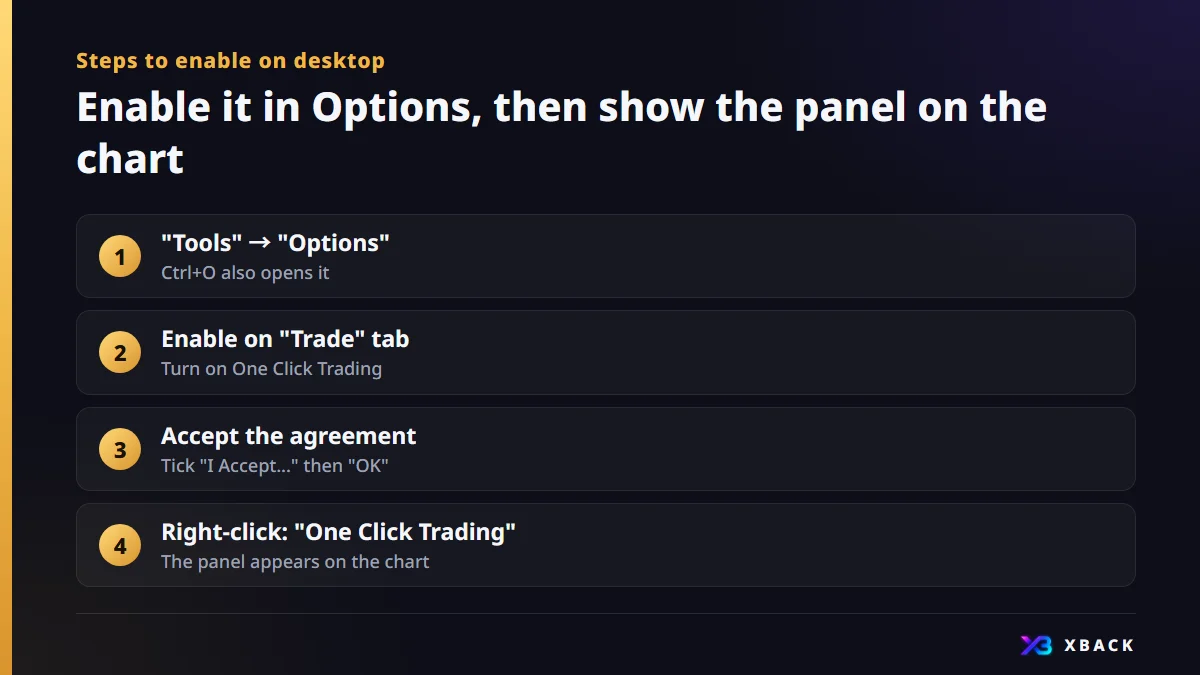
The official help says to open Options by choosing "Options" in the "Tools" menu or by pressing Ctrl+O.
- 1
Open "Tools" → "Options"
Choose "Options" from the "Tools" menu. Ctrl+O also opens it.
- 2
Select the "Trade" tab
In the Options dialog, open the "Trade" tab and enable the One Click Trading option.
- 3
Accept the agreement
The first time, an agreement window appears. Tick "I Accept these Terms and Conditions" and click "OK".
- 4
Show the panel on the chart
Right-click on the chart and choose "One Click Trading" from the context menu.
- 5
Toggle the panel display
You can also show or hide the panel with the "One Click Trading" icon to the left of the OHLC line at the top left of the chart.
How to read the panel and change the lot size
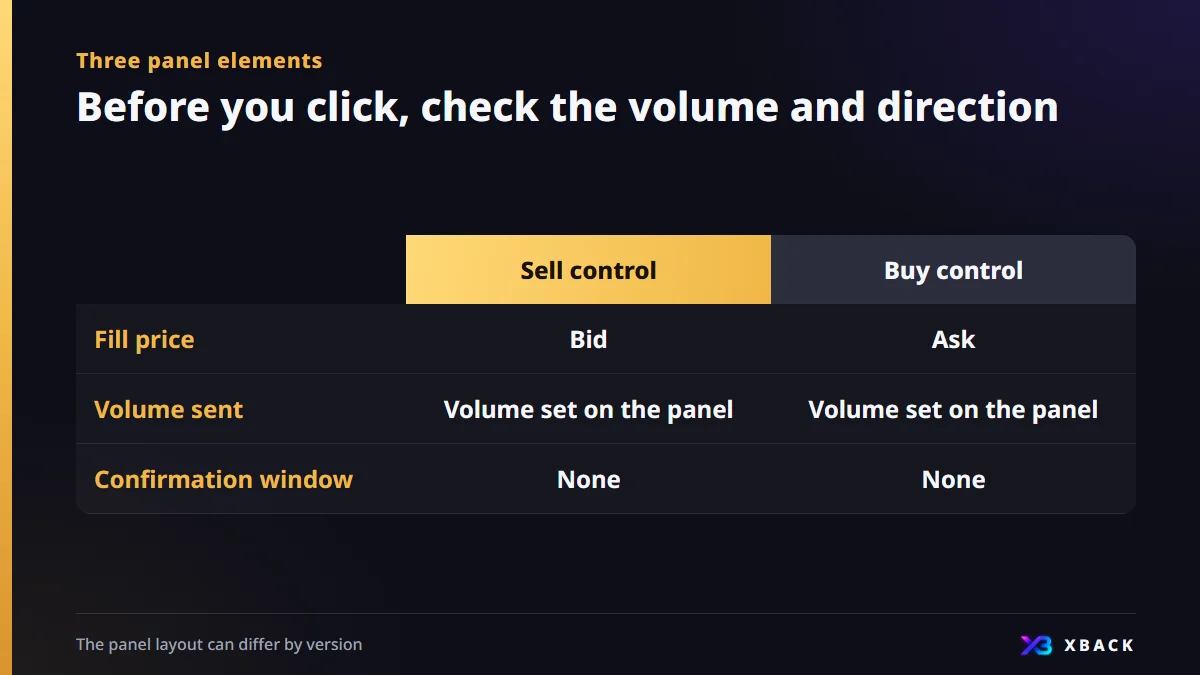
From the panel you can instantly send a market order for the volume you specify. Besides the sell and buy controls, there is a field for the volume, and that is where you change it.
| Panel element | Meaning | Price it uses |
|---|---|---|
| Sell control | Sends a sell market order immediately | A sell fills at the Bid |
| Volume (lots) | The volume that will be sent when you click | Has no effect on price. Check it before every click |
| Buy control | Sends a buy market order immediately | A buy fills at the Ask |
We explain in a separate column why sells fill at the Bid and buys at the Ask. By the amount of the spread, a trade starts in a floating loss right after you click.
See which price your order fills at, and why a trade shows a floating loss right after you click.
What are Bid and Ask in forexWhat to check when One Click Trading doesn't work
- Check that One Click Trading is enabled on the "Trade" tab of Options
- Check that you accepted the agreement the first time. It does not work without it
- With a broker whose execution mode is "Request", One Click Trading is not available and the standard trade dialog appears
- A new order is rejected if free margin is insufficient. See the separate column for how it works
- Outside trading hours or while the market is closed, orders are not accepted at all
The execution mode is set by each broker. If One Click Trading is unavailable, check your account's execution mode on the broker's official page or with support.
One example sorts out the numbers to look at when an order won't go through.
Equity vs. free marginFour habits that prevent mis-clicks
- Keep the panel volume at a small value as your everyday setting
- Before you click, always look at the volume field and the sell/buy direction
- After a fill, set a stop-loss (SL) and take-profit (TP) right away
- Before first use, try the click positions and behavior on a demo account
Without a confirmation window, the impact of an operating error is larger. Just keeping the volume small can limit the loss from a mis-click.
The related column explains the differences between order types. If you set lot size by working back from the loss you can accept, you won't be left guessing.
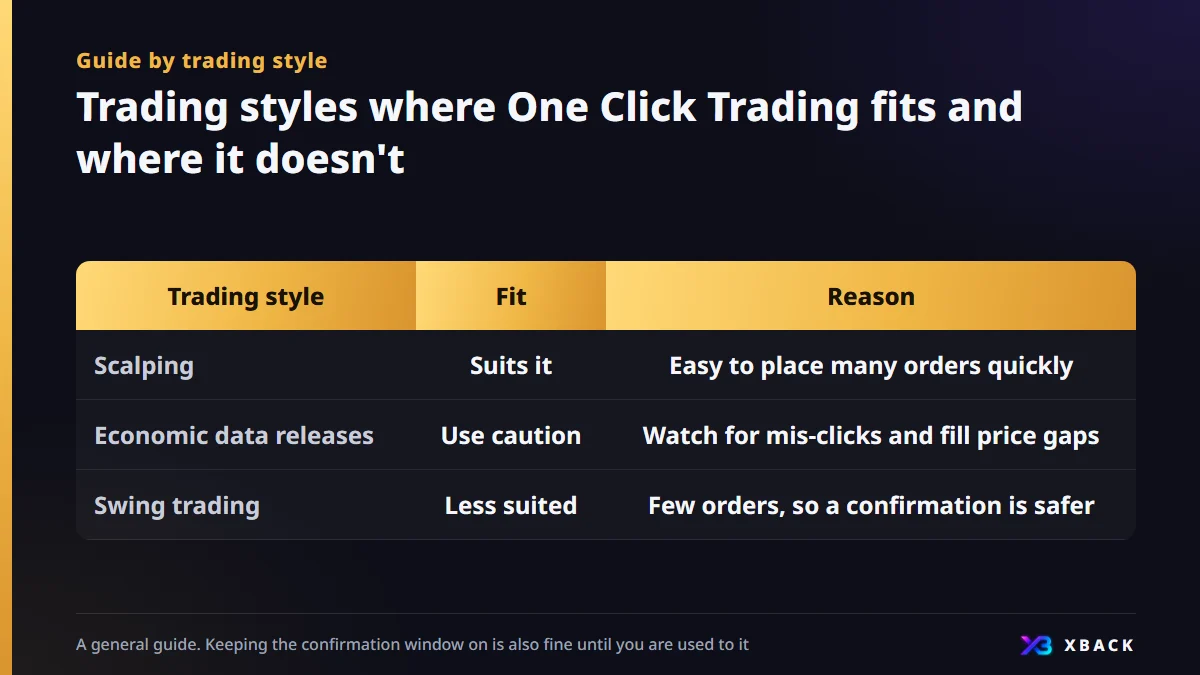
Trading styles where One Click Trading fits and where it doesn't
| Trading style | Fit | Reason |
|---|---|---|
| Scalping | Suits it | Skipping the confirmation window makes it easy to place many orders in a short time |
| When economic data is released | Use caution | Prices move fast and spreads tend to widen. Watch for mis-clicks and differences in the fill price |
| Swing trading | Less suited | You place few orders, so a confirmation window is often safer |
You can switch One Click Trading on or off in Options at any time. Another approach is to keep it disabled until you are used to it, and try it on a demo account first.
Enter the loss you can accept and your stop-loss width to get a guide to the volume to set on the panel, in USD.
Calculate a suitable lot sizeFAQ
Q.Where do I set up One Click Trading in MT5?
Open "Options" (Ctrl+O) from the "Tools" menu and enable One Click Trading on the "Trade" tab. An agreement appears the first time, so tick "I Accept these Terms and Conditions" and click "OK". Then right-click the chart and choose "One Click Trading" to show the panel.
Q.Why can't I use One Click Trading in MT5?
Possible reasons are that it isn't enabled in Options, you haven't accepted the agreement, the execution mode is "Request" (the standard trade dialog appears in that case), free margin is insufficient, or it is outside trading hours. Execution modes differ by broker, so check the official page or support.
Q.How do I change the lot size with One Click Trading?
Specify the volume on the One Click Trading panel on the chart. The order is sent with the volume at the moment you click and there is no confirmation window, so it is safest to make a habit of checking the volume every time before you click.
Q.How do I turn One Click Trading off and get the confirmation window back?
Disable One Click Trading on the "Trade" tab under "Tools" → "Options". Once it is off, the trade dialog appears when you place an order.
Q.Does One Click Trading also apply to closing positions and deleting orders?
The official help says that when it is enabled, placing, modifying and deleting pending orders are also executed without a confirmation window. Pressing the close or delete buttons on the "Trade" tab of the Toolbox is also processed without confirmation.
Sources
- MetaQuotes "One Click Trading" (MetaTrader 5 Help) (checked 2026-11-10)
- MetaQuotes "Platform Settings" (MetaTrader 5 Help) (checked 2026-11-10)
- MetaQuotes "Executing Trades" (MetaTrader 5 Help) (checked 2026-11-10)

This article is for information purposes only and is not investment advice. Conditions may change, so please check each broker's official page for the latest information. Offshore FX and CFD trading carries a risk of losses exceeding your principal.