How to Install an EA on MT5: 7 Steps and What to Check If It Won't Run
Did you add an EA to MT5 and now cannot tell whether it is running on the chart?
In short, it runs once you put the EA file in the right folder, attach it to a chart and allow Algo Trading.
This article covers the 7 installation steps, how to confirm it is running, causes when it does not run, and how to stop it.
Key takeaways
- EAs for MT5 are .ex5 or .mq5 files, and MT4 files such as .ex4 and .mq4 will not run.
- Use Open Data Folder to put the EA in MQL5\Experts, attach it to a chart and allow Algo Trading.
- If it does not run, check 6 points such as the Algo Trading button, and test on demo before going live.
In short: an EA runs once you place it, refresh, attach it to a chart and allow it
- MT5 uses .ex5 (or .mq5). MT4 files such as .ex4 and .mq4 will not run
- Use File → Open Data Folder, put the EA in MQL5\Experts, and refresh the Navigator
- Drag the EA onto a chart and tick "Allow Algo Trading"
- Run it on a demo account first, and consider a VPS if you do not want it to stop when your PC is off
EA file types: .ex5 and .mq5, and MT4 files will not run
EA files for MT5 come mainly in two types. Check the extension before you install.
- .ex5: a compiled EA. Put it in the folder and it is ready to use
- .mq5: source code. Compile it into an .ex5 in the editor that comes with MT5
- .ex4 and .mq4: files for MT4. They do not run on MT5
Even if you put an MT4 EA into MT5, you cannot run it. You can check the difference between the two in the related column.
Be careful with an EA of unknown origin, because you cannot check what is inside. Watching how it behaves on a demo account first is the safer way.
7 steps to install an EA on MT5
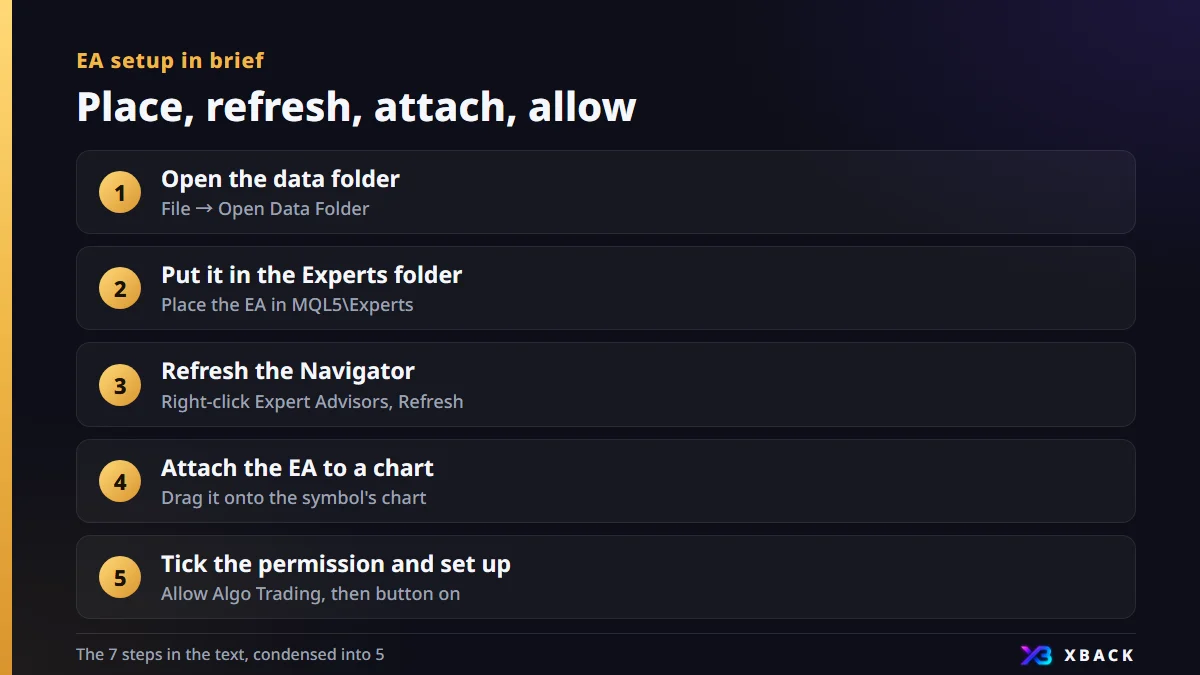
This assumes the desktop version of MT5 and walks through the flow from installation to checking it works. Screen labels follow the standard English version.
- 1
Open the data folder
In MT5, choose File → Open Data Folder.
- 2
Put it in the Experts folder
Place the EA file in MQL5\Experts inside the folder that opens.
- 3
Refresh the Navigator
In the Navigator, right-click Expert Advisors and choose Refresh. Restarting MT5 also works.
- 4
Attach the EA to a chart
Open a chart of the symbol and timeframe you want, then drag the EA from the Navigator onto the chart.
- 5
Tick the permission and set it up
On the Common tab of the settings window, tick "Allow Algo Trading", then adjust the settings on the Inputs tab.
- 6
Turn on Algo Trading
Turn on the Algo Trading button on the toolbar.
- 7
Check that it works
Look at the EA name and status at the top right of the chart, and check the Experts tab and Journal tab in the Toolbox for errors.
How to check that the EA is running
You can check whether it is installed in a few places on screen. An EA placing no orders is a different matter from an EA not running.
- The EA's name and status appear at the top right of the chart
- The Experts tab in the Toolbox shows no error messages from the EA
- The Journal tab in the Toolbox shows no error records
- An EA only places orders when its own conditions are met, so quiet periods with no orders are normal
Checklist when an MT5 EA does not run
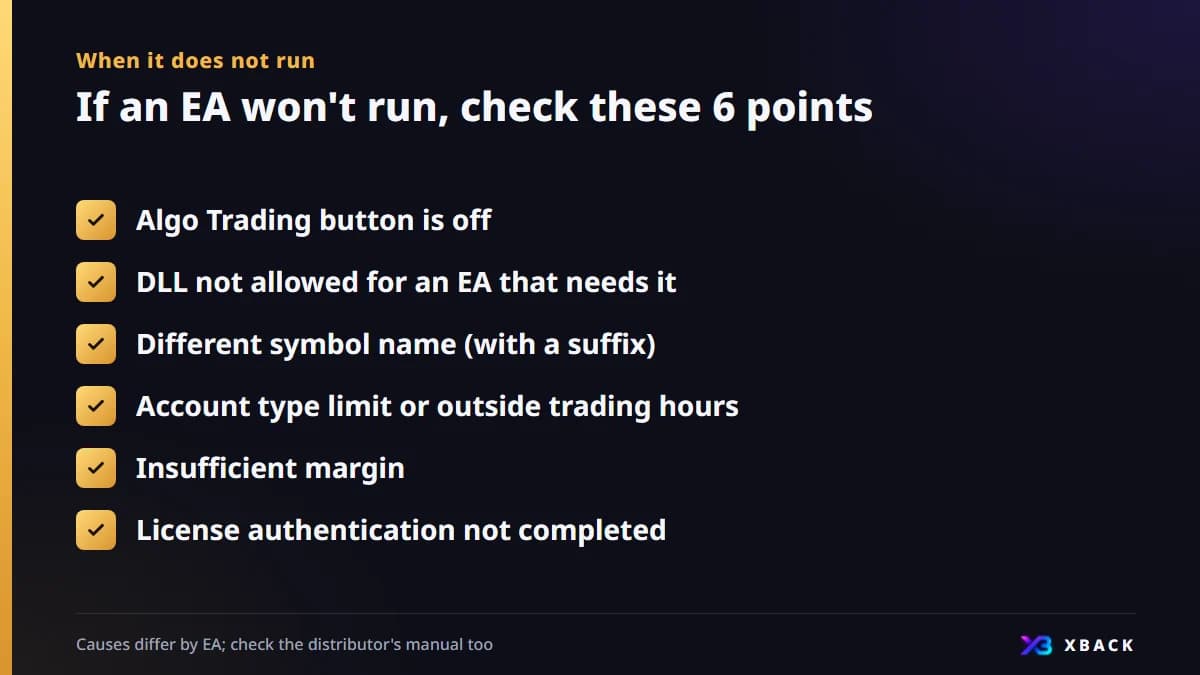
When an EA does not run, a missed setting is the usual cause. Work down the table below in order.
| What to check | What happens | How to check |
|---|---|---|
| Algo Trading button is off | No orders are placed even with the EA attached | See whether the toolbar button is on |
| DLL not allowed for an EA that needs it | The EA does not start, or stops | Check the EA's manual and the permission setting on the Common tab |
| Different symbol name (with a suffix) | It cannot find the target symbol | Match the symbol name in Market Watch to the EA's setting |
| Account type restriction or outside trading hours | Orders are not accepted | Check the account types the EA supports and the symbol's trading hours |
| Insufficient margin | Funds are too small for the lot size, so no order is placed | Lower the lot size or review your funds |
| License authentication not completed | It does not run because of an authentication error | Complete authentication using the distributor's steps |
Symbol names differ by broker and sometimes carry extra characters at the end. Specify the EA's target symbol to match what is actually shown.
How to stop or remove an EA
There are two ways to stop an EA. Use whichever suits your purpose.
- Stop it on one chart only: right-click the chart and remove the EA from Expert Advisors
- Stop all EAs: turn off the Algo Trading button on the toolbar
Stopping an EA does not close positions it already holds. Decide for yourself whether to close them and do so manually.
Operating notes: demo testing and VPS
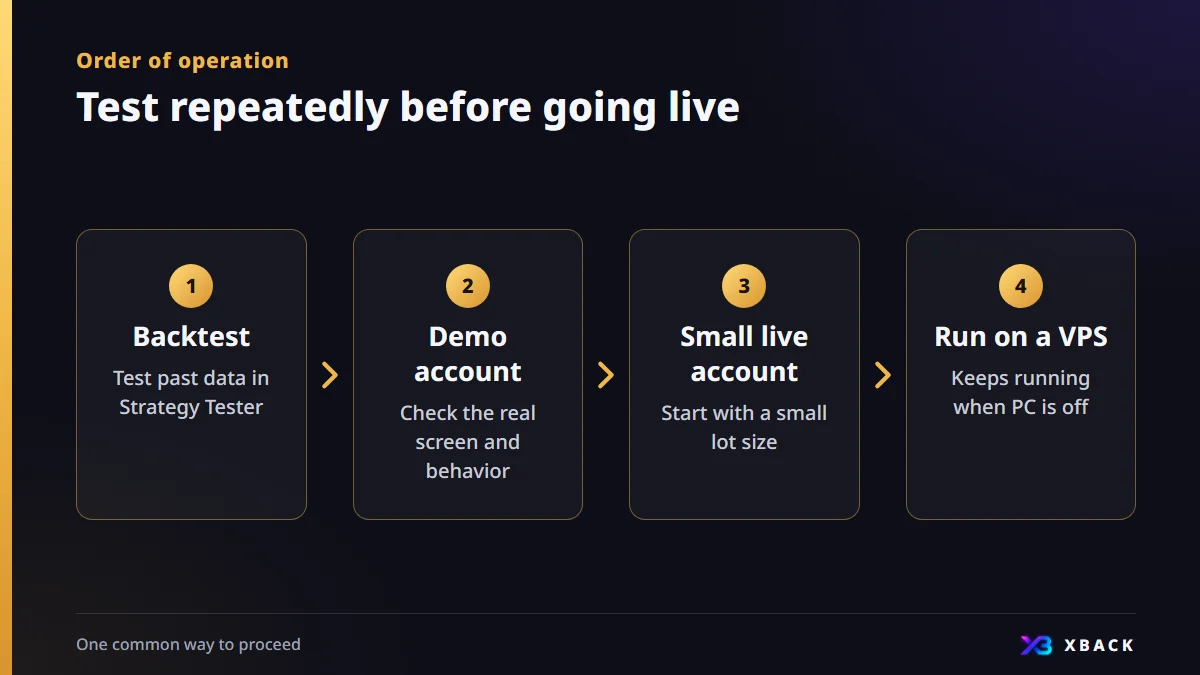
An EA is not something to use live right after installing it. Going in the following order can keep mistakes small.
- Backtest: test on past data in the Strategy Tester
- Demo account: check the actual screen and behavior
- Small live account: start with a small lot size
- Run around the clock on a VPS: so it does not stop when you close your PC
If you run MT5 on a home PC, the EA stops when you shut down the PC. If you want it running 24 hours, consider a VPS.
You can find how to test and how to use a VPS in the related columns.
EAs and cashback
Many cashback systems calculate returns from your trading volume. If an EA raises your volume, more of it may qualify for returns.
- Return amounts are not yet confirmed, and we will post them on each broker's page at launch
- Whether EAs are allowed differs by broker, so check the terms
- Do not raise your EA's lot size or number of trades because of returns
Enter your win rate and average profit and loss to check the expectancy of an EA or method. Use it for testing before you go live.
Calculate expectancyFAQ
Q.Where do I put an EA in MT5?
In MT5, choose File → Open Data Folder and put it in the MQL5\Experts folder. After that, right-click Expert Advisors in the Navigator and refresh.
Q.Can I use an MT4 EA on MT5?
No. MT4 files (.ex4 and .mq4) do not run on MT5. You need an MT5 file (.ex5 or .mq5). You can check the difference between the two in the related column.
Q.Why does my EA not run even though I attached it to a chart?
A common case is that the Algo Trading button is still off. Also check the permission on the Common tab, a different symbol name, trading hours, insufficient margin and license authentication.
Q.Do I need a demo account to run an EA?
It is not required, but it is recommended. You can check, without reducing your funds, that the installation steps and settings are correct and that orders are placed as expected. Start small when you go live.

This article is for information purposes only and is not investment advice. Conditions may change, so please check each broker's official page for the latest information. Offshore FX and CFD trading carries a risk of losses exceeding your principal.