MT5 Trade History: How to View and Export Reports, Check Total Lots
Not sure where to find your MT5 trade history, or how to save the report?
In short, check it on the History tab in the Toolbox and save it from the Report screen.
This article covers how to show your history, save the report, read the main items and total your lots.
Key takeaways
- You can check MT5 trade history on the History tab in the Toolbox by choosing a period.
- Reports can be saved as HTML or PDF, and adding each row's volume gives your total lots.
- How lots are counted differs by broker. XB cashback amounts will be listed when sign-ups open.
In short: view MT5 trade history on the History tab and save it with the Report
- On the desktop version, your account history appears on the History tab of the Toolbox
- If the history is large, you can narrow it down by choosing a period
- The report can be saved as an HTML or PDF file
- Adding up the Volume of each row gives your total trading volume (lots)
How to view trade history in MT5 (desktop)
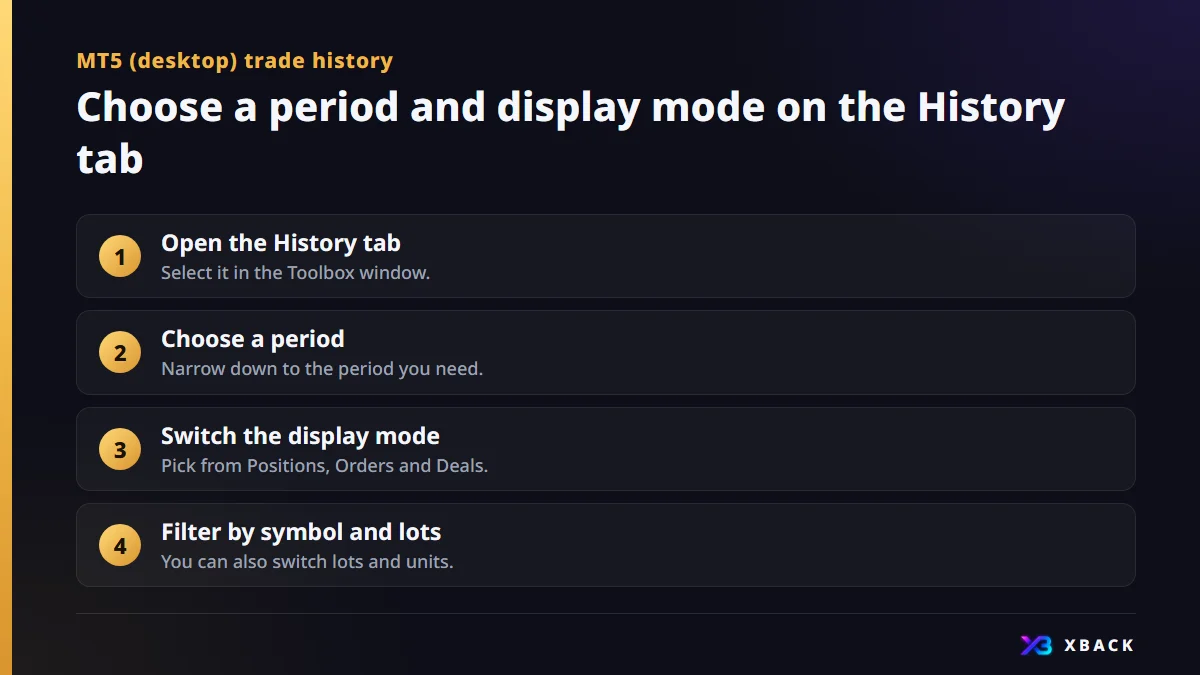
The official help says you can see your trading account history by opening the History tab in the Toolbox window.
- 1
Open the History tab
Select the History tab in the Toolbox window. A list of trades made on the account appears.
- 2
Choose a period
If the history is too large or you only want a specific period, select it here.
- 3
Switch the display mode
Pick the view you want from Positions, Orders and Deals.
- 4
Filter by symbol and lots
You can also filter by symbol and switch between lots and units.
| Display mode | What it shows |
|---|---|
| Positions | Opening, adding, partial closing and full closing combined into one record |
| Orders | All trade requests sent to the broker |
| Deals | Buy and sell transactions actually executed from orders |
How to save the report (HTML and PDF)
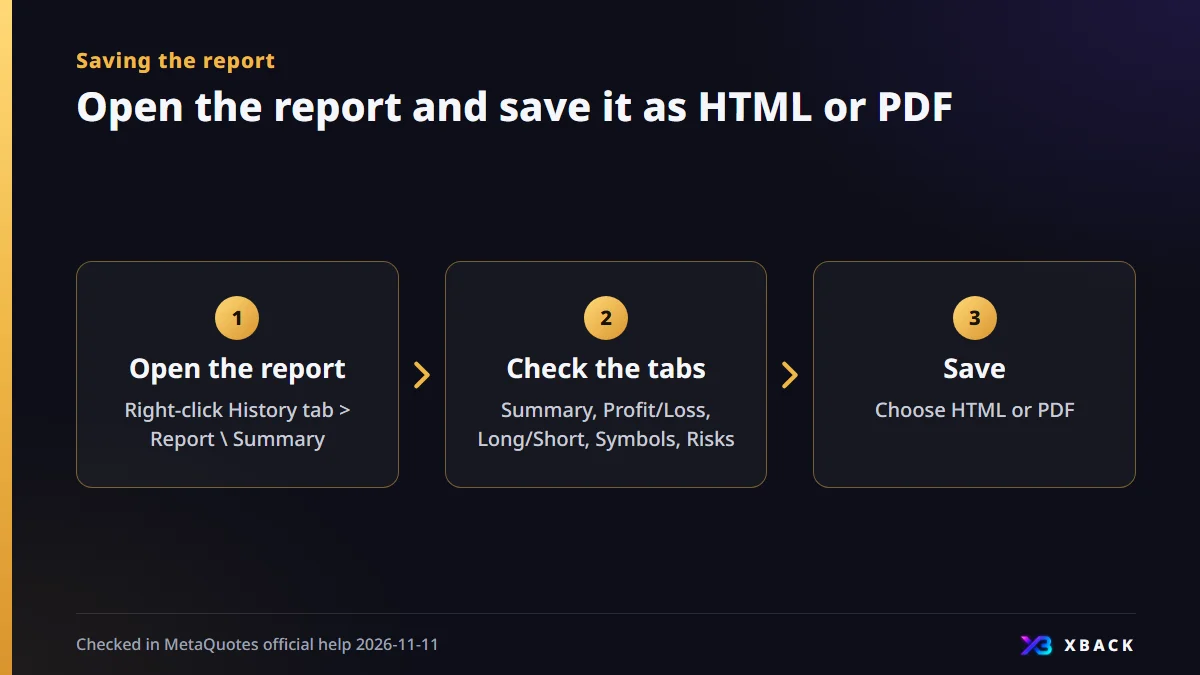
Recent MT5 versions have a report feature that shows trading results as charts and figures. The official help says it can be saved as HTML or PDF.
- 1
Open the report
Right-click on the History tab and choose Report \ Summary. You can also open Reports from the View menu.
- 2
Check the tabs
You can see the figures on five tabs: Summary, Profit/Loss, Long/Short, Symbols and Risks.
- 3
Save as HTML or PDF
Each tab has an action to save the report as HTML or PDF. Choose a format and save.
How to read the main report items
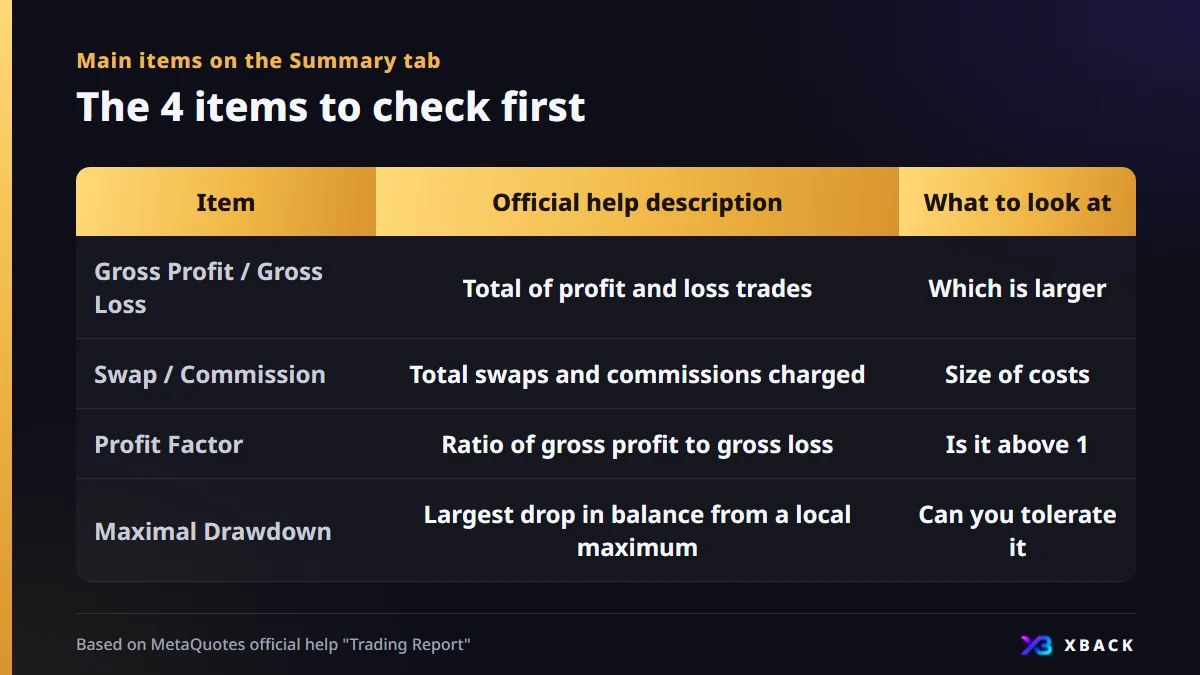
The Summary tab of the report lists overall profit and loss metrics. Start with the following four to get a quick picture of your results.
| Item | Official help description | What to look at |
|---|---|---|
| Gross Profit / Gross Loss | Total of profitable trades and total of losing trades. Swaps and commissions are not included | Which is larger, profit or loss |
| Swap / Commission | Total swaps applied to the account and commissions charged | How large the costs not included in profit and loss are |
| Profit Factor | Ratio of gross profit to gross loss. 1 means profit and loss are equal | Whether it is above 1 |
| Maximal Drawdown | Largest drop in balance from a local maximum, as a percentage | Whether it is a range you can tolerate |
With few trades, these figures can swing widely by chance. Related columns cover how to keep records and how often to review them.
How to view history on mobile (iPhone and Android)
The official help covers the History screen on iPhone and Android. On mobile too, you can choose a period and check your account history.
- Switch the display mode between Positions, Orders and Deals
- For the period, choose a preset or enter your own start and end dates
- At the bottom of the Deals screen, the deposit, profit, swap, commission and balance for the selected period are shown
- Tap a row to see details such as volume and price
The Volume in the Positions view gives you a rough idea of your trading volume even on mobile. Saving and totaling are easier on the desktop version.
How to check your total trading volume (lots)
Many cashback programs calculate the amount based on trading volume. Counting your monthly total lots yourself lets you compare it with the amount credited.
- Set the History tab to Positions and set the period from the start to the end of the month
- Add up the Volume of each row (the example below uses made-up numbers)
- Example: 0.10 lots + 0.20 lots + 0.05 lots = 0.35 lots
- In the Deals view, the entry and exit of the same position appear as separate rows, so be careful
XB's "Lot Totals from Trade History" tool reads a saved HTML report or CSV. It totals lots by symbol inside your browser. Files are not sent to a server.
Depending on the report type, columns may not be readable. In that case, use a file with the same column names as the sample CSV in the tool.
What to check when your history does not show
- Period: if there are no trades in the selected period, the list is empty. Widen the period and check again
- Account: make sure you are not logged in to a different account. History and reports belong to the account you are logged in to
- Display mode: Positions, Orders and Deals look different. Switch the mode
- Symbol filter: check that only a specific symbol is not selected
- Positions view: positions that span periods may not be included
Just select your saved trade history and get lots and trade counts by symbol. Processing is done entirely in your browser.
Total your lots from trade historyFAQ
Q.Where can I see my trade history in MT5?
On the desktop version, open the History tab in the Toolbox window. On mobile, use the History screen and switch between Positions, Orders and Deals.
Q.In what format can I save an MT5 report?
The official help says it can be saved as HTML or PDF. Open the report from Report \ Summary in the right-click menu of the History tab, or from Reports in the View menu.
Q.How do I find my total lots in MT5?
Set the History tab to Positions, specify the period and add up the Volume of each row. If you load a saved report or CSV into XB's trade history lot tool, you can also see totals by symbol.
Q.Why is my MT5 trade history not showing?
Check the period, the account you are logged in to, the display mode and the symbol filter. History shows the logged-in account only, so trades from another account will not appear.
Q.What is the difference between Positions, Orders and Deals?
A position is one record from opening to closing, an order is a trade request sent to the broker, and a deal is a trade that was actually executed. To total lots, the Positions view is easiest to count.
Sources
- MetaTrader 5 Help: Performing Deals (Trading Account History) (checked 2026-11-11)
- MetaTrader 5 Help: Trading Report (checked 2026-11-11)
- MetaTrader 5 Help for iPhone/iPad: History (checked 2026-11-11)
- MetaTrader 5 Help for Android: History (checked 2026-11-11)

This article is for information purposes only and is not investment advice. Conditions may change, so please check each broker's official page for the latest information. Offshore FX and CFD trading carries a risk of losses exceeding your principal.