MT5 Alert Setup: Push Notifications to Your Phone and Fixes for Missing Alerts
Are you unsure how to find out about a price level or a filled order on your phone without watching the MT5 chart all day?
In short, you set the condition with an alert in desktop MT5 and send it to your phone as a push notification.
This article covers the setup steps, trade notifications, what to check when notifications do not arrive, and key cautions.
Key takeaways
- Create an MT5 alert by setting the condition in the Alerts tab of the Toolbox in desktop MT5.
- For phone notifications, enter your MetaQuotes ID in the Notifications tab under Options in desktop MT5.
- Alerts and notifications work only while desktop MT5 is running, so place your stop-loss as an order.
In short: set the condition with an alert, and send it to your phone by push notification
- Create a price alert in the Alerts tab of the Toolbox
- To reach your phone, enter your MetaQuotes ID in the Notifications tab of desktop MT5
- Alerts and notifications work only while desktop MT5 is running
- A notification is not a substitute for a trading decision. Place your stop-loss as an order separately
What MT5 can notify you about: alerts, push and email
MT5 has several ways to tell you when a condition is met. The benefit is that you notice the moment a condition is met without watching the chart.
You can keep track of whether the price has reached your target, or whether an order has been filled, even when you are away from your PC.
| Method | Where it reaches you | Main use |
|---|---|---|
| Alerts | A sound or file played on your PC | When the price reaches a set level |
| Push notification | The MT5 app on your phone | Learn of prices or fills while out |
| Email notification | The email address you registered | Requires SMTP settings |
Setting a price alert: create it in the Alerts tab
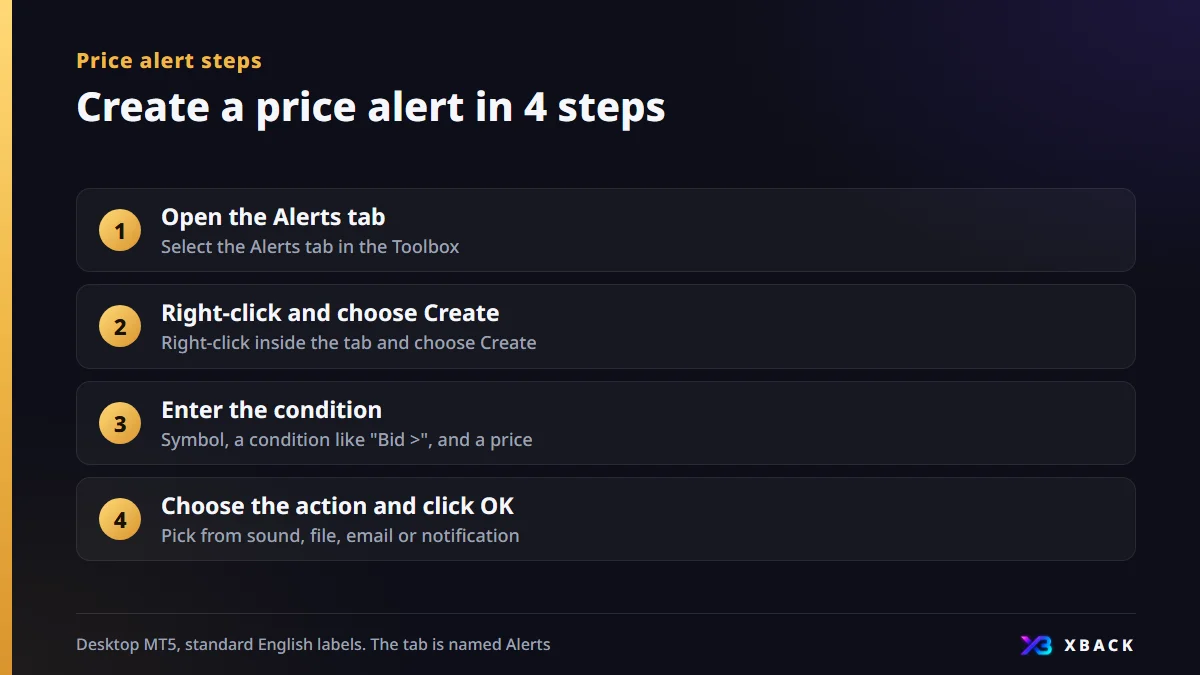
These steps assume desktop MT5. Screen labels are those of the standard English version.
- 1
Open the Alerts tab
Select the Alerts tab in the Toolbox.
- 2
Right-click and choose Create
Right-click inside the tab and choose Create.
- 3
Enter the condition
Select a symbol, then enter a condition such as "Bid >" or "Bid <" and a price.
- 4
Choose the action and click OK
Choose an action from sound, file, email or notification, then click OK.
Placing an alert at a level you want to use as a take-profit or stop-loss guide makes it easier to notice. Place the stop-loss itself as an order, not as an alert.
Setting up push notifications to your phone
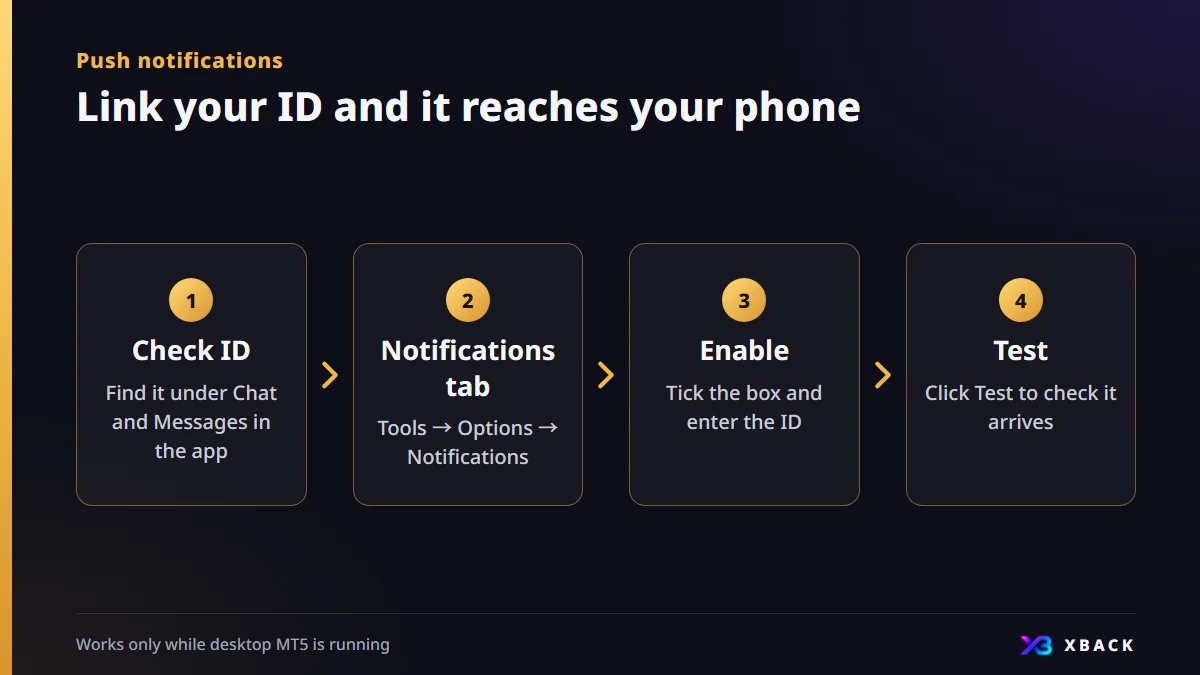
Push notifications link the MT5 app on your phone with desktop MT5 through your MetaQuotes ID. First check the ID on your phone.
- 1
Check the ID on your phone
In the MT5 app, open Settings, then Chat and Messages, and check your MetaQuotes ID (8 alphanumeric characters).
- 2
Open the Notifications tab on desktop
In desktop MT5, choose Tools → Options and open the Notifications tab.
- 3
Enable it and enter the ID
Tick "Enable Push Notifications" and enter your MetaQuotes ID.
- 4
Click Test to confirm
Click the Test button and check that the notification reaches your phone.
Getting trade notifications and notifications from EAs
Once push notifications are enabled, set up fill notifications in the same Notifications tab.
- Under Tools → Options → Notifications tab, tick "Notify about trade operations"
- You can then learn of trading activity on your phone
If an EA has a notification feature, its messages will not arrive unless the Notifications tab settings are enabled. EAs that use the MQL5 SendNotification function are an example.
Check the EA's documentation from its provider to see whether it has a notification feature. A related column explains how to install an EA.
Ways to use notifications, and what they cannot cover
| What you want to know | What to use | Caution |
|---|---|---|
| A price being reached | Alerts | Works only while desktop MT5 is running |
| Stop-loss or take-profit fills | Trade operation notifications | Enable in the Notifications tab |
| A drop in margin level | Cannot be set directly with alerts | Balance and margin emails or notices depend on the broker's features |
| Detecting that an EA has stopped | The EA's notification feature | Usable only if the EA has one |
A drop in margin level cannot be set directly with alerts. It helps to check your room before the stop-out level in advance with a related tool.
Checklist for when notifications do not arrive
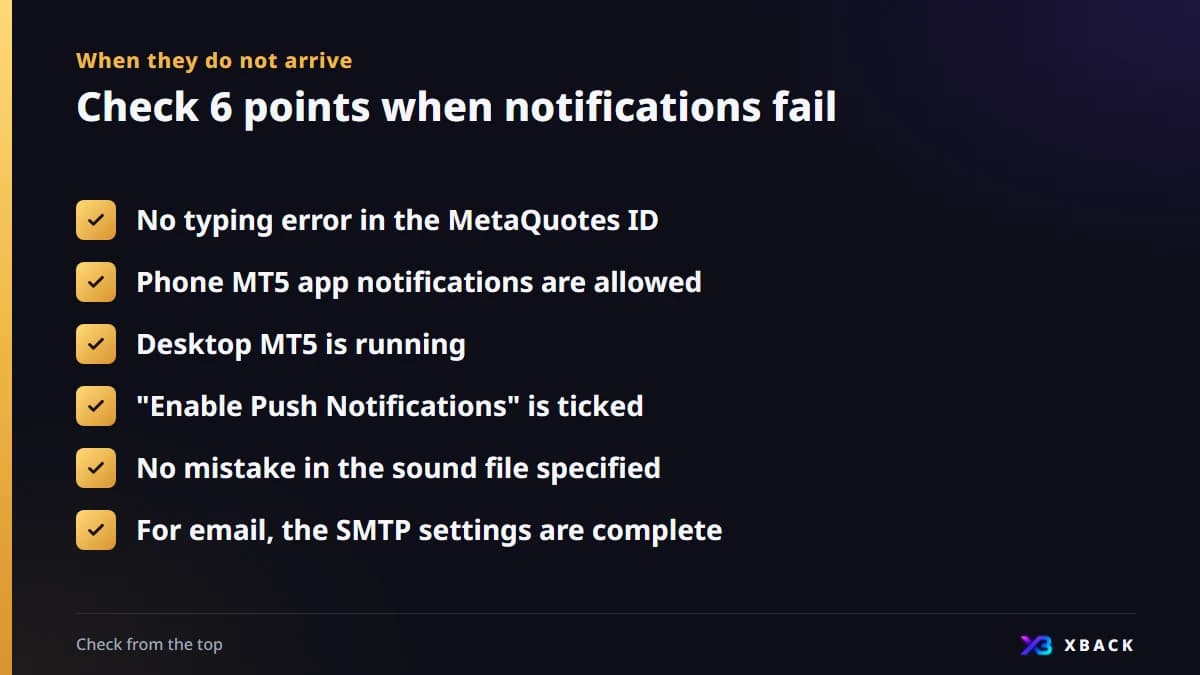
Missing notifications are most often caused by a missed setting. Check the items below from the top.
- There is no typing error in the MetaQuotes ID
- Notifications for the MT5 app on your phone are allowed
- Desktop MT5 is running
- "Enable Push Notifications" is ticked
- There is no mistake in the sound file specified
- For email notifications, the SMTP settings are complete
If they still do not arrive, try the Test button again. Reopening the app on your phone is another option.
Caution: it works only while desktop MT5 is running, and a notification is not a decision
Alerts work only while desktop MT5 is running. If you shut down your PC or close MT5, notifications stop too.
- To receive notifications while you are out, you need an environment that keeps desktop MT5 running
- If you want it running 24 hours, consider using a VPS
- Even if you notice a notification, you may not be able to decide right away
- Place your stop-loss as an order in advance rather than relying on notifications
How to run MT5 on a VPS is covered in a related column.
Around data releases, price movements tend to be sudden. Decide beforehand what you will do when you receive a notification. Cautions are summarized in the related column on economic indicators.
Notifications and cashback
Notifications make it easier to notice sudden moves such as those around data releases. However, they do not guarantee you will avoid losses.
- The cashback amount is not yet confirmed and will be posted on each broker page at launch
- Many cashback schemes depend on trading volume and do not make up for losses
- Do not increase the number of trades for the sake of cashback
Enter your balance and lots to check your room before the stop-out. See that room in numbers before you set up notifications.
Calculate the stop-out levelFAQ
Q.Where do I set alerts in MT5?
In the Alerts tab of the Toolbox in desktop MT5, right-click and choose Create. Select a symbol, a condition such as "Bid >" or "Bid <" with a price, and an action, then click OK to save.
Q.How do I send MT5 push notifications to my phone?
Check your MetaQuotes ID in the phone app under Settings → Chat and Messages. In desktop MT5, go to Tools → Options → Notifications tab, tick "Enable Push Notifications", enter the ID, and confirm with the Test button.
Q.Why are my MT5 notifications not arriving?
The main causes are a typing error in the MetaQuotes ID, notifications not allowed on the phone, and desktop MT5 not running. Also check that "Enable Push Notifications" is ticked, the sound file is specified correctly, and the SMTP settings for email are complete.
Q.Do MT5 alerts work if I close my PC?
No. Alerts work only while desktop MT5 is running. If you want to receive notifications at all times, consider using a VPS. Running MT5 on a VPS is covered in a related column.

This article is for information purposes only and is not investment advice. Conditions may change, so please check each broker's official page for the latest information. Offshore FX and CFD trading carries a risk of losses exceeding your principal.