XS Demo Account: How to Open, Account Types, Expiry and Adding Funds
Want to try an XS demo account but not sure which account types offer one or how long it lasts?
The XS official help (checked on November 13, 2026) describes the demo account as a free account with virtual funds only. It says you can use it right after completing the survey.
Below: which account types you can use, how to open one, what makes a demo disappear, and how to top up your virtual balance.
Key takeaways
- You can open a demo on Standard, Pro, Elite, Extra and Classic; only Cent does not offer one.
- The demo is usable right after the survey and has no expiry, but it is archived and cannot be restored after 90 days without trading.
- Add virtual funds with “Add Demo Funds” in the Client Area. The initial amount could not be confirmed officially.
Summary: how to open an XS demo account and the conditions
- Demo accounts are available on Standard, Pro, Elite, Extra and Classic, on both MT4 and MT5
- Cent is the only account type without a demo
- Register, confirm your email, finish your profile and the survey, then choose demo or live
- There is no expiry, but a demo is archived automatically after 90 days without trading and cannot be restored. You can open a new one at any time
- Top up virtual funds with “Add Demo Funds” in the Client Area
XS account types that offer a demo account
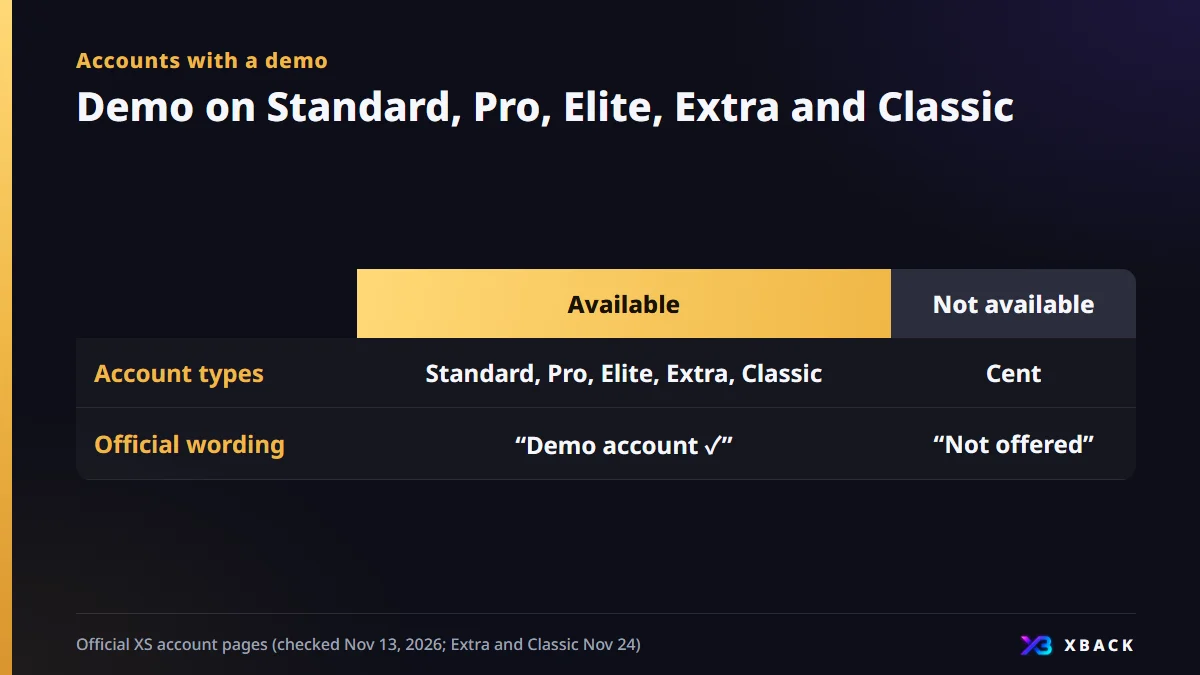
| Category | Account types | Wording on the official account page |
|---|---|---|
| Available | Standard, Pro, Elite, Extra, Classic | “Demo account ✓” |
| Not available | Cent | “Not offered” |
The Standard, Pro and Elite pages have MT4 and MT5 columns. The English pages for Extra and Classic also list MT4 and MT5, and the help article on demo expiry refers to “MT4 and MT5 demo accounts”.
Cent is an MT5-only account with no demo. For conditions by account type, see how to choose an XS account type.
How to open an XS demo account
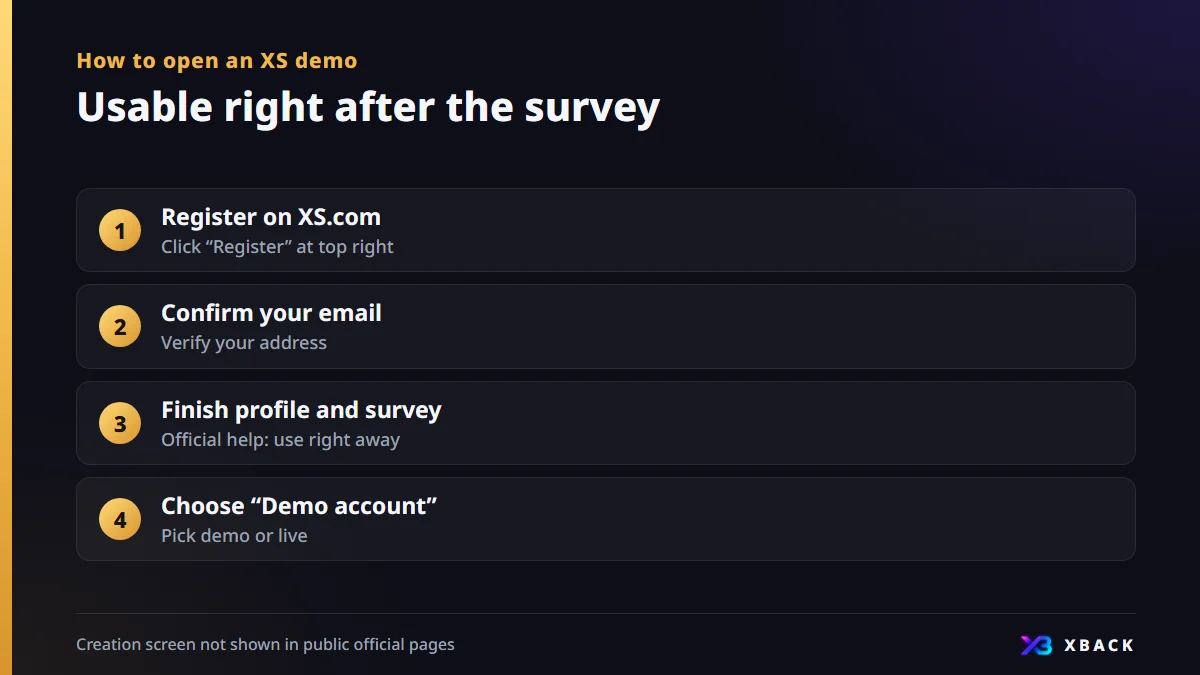
The official help gives this order: register, confirm your email, then complete your profile and the survey. After that you choose a demo or a live account.
- 1
Register on XS.com
Click “Register” at the top right of the official site and enter your name, email, country of residence and phone number.
- 2
Confirm your email
Confirm your address using the email you receive after registering.
- 3
Complete your profile and the survey
The official help says the demo account can be used right after the survey. On the other hand, the guide for new traders includes uploading documents among the steps. We could not confirm officially whether documents are required for the demo alone (November 13, 2026).
- 4
Choose “Demo account” and open it
Once your profile is complete, choose a demo for practice or a live account for real trading.
Demo account expiry and how to add funds
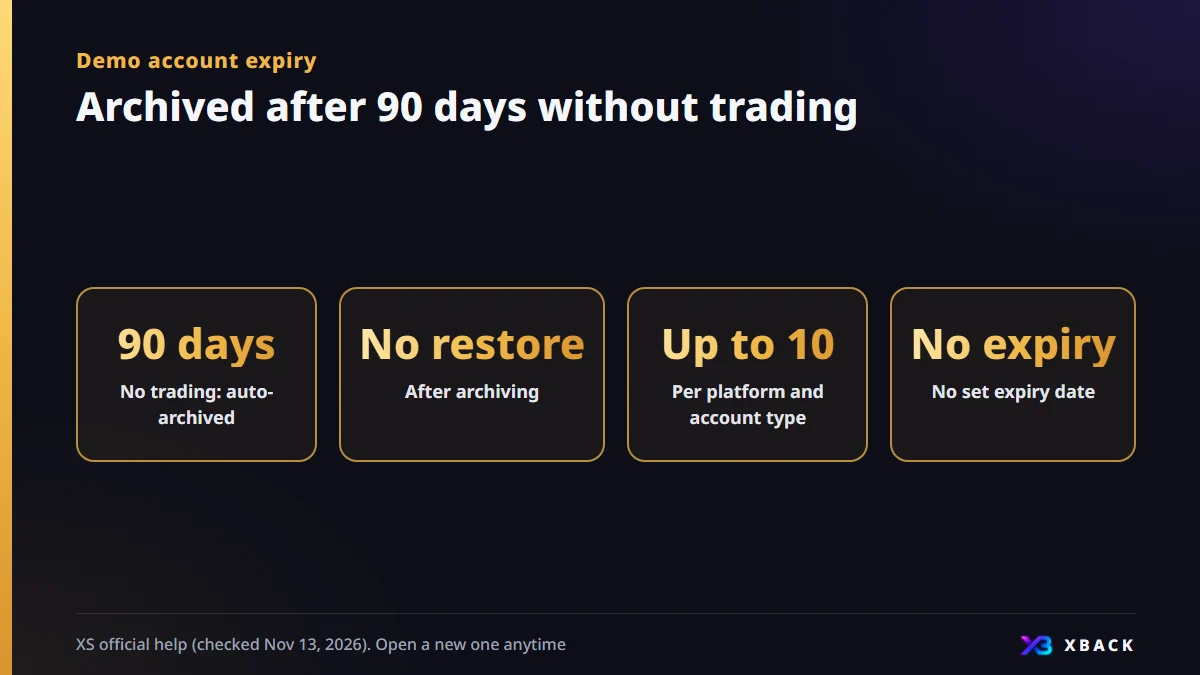
According to the official help, XS demo accounts have no expiry. However, MT4 and MT5 demo accounts are archived automatically after 90 days without trading.
- A demo account is archived automatically after 90 days without trading
- After archiving, it cannot be restored or reactivated
- Even if archived, you can open a new demo account at any time
- Up to 10 accounts per platform and account type. If you need more, contact XS for a review
If you run out of virtual funds, you can top up from the Client Area. The menu names are kept in the official English wording.
- 1
Log in to the Client Area
Log in to the XS Client Area (my.xs.com).
- 2
Go from “Accounts” to “Account Overview”
Click “Accounts” in the left toolbar and open “Account Overview”.
- 3
Click “View” next to the demo account
Choose “View” on the row of the demo account you want to top up.
- 4
Choose the amount in “Add Demo Funds”
Click “Add Demo Funds” and choose the amount to add from the drop-down.
- 5
Click “Submit”
Funds are then added to the demo account.
XS demo account vs live account
| Item | Demo account | Live account |
|---|---|---|
| Funds | Free account with virtual funds only | Real funds |
| Identity verification | Official help says “available right after the survey” | Full verification with POI and POA required |
| Dynamic leverage | Not applicable to any demo account | Used on most accounts except Cent LT |
| Swap-free | Not applicable | Applied automatically to live accounts |
The official help says a demo account offers the same features and technical indicators as a live account. The official pages do not state differences in execution and spreads versus live, nor the maximum leverage or margin call levels of the demo.
For the general differences between demo and live trading, see demo vs live accounts in offshore FX.
What to check before moving from demo to live
- Account type is fixed once opened. To use a different type, open a new account from the Client Area (official help)
- A live account needs full verification with POI and POA. See KYC verification for offshore FX for the process
- Minimum deposits by account type and method are in XS minimum deposit and methods
- Demo accounts are excluded from dynamic leverage, so check the leverage rules for your live account type separately
If you are considering Cent, plan on the basis that no demo is available.
See the live account opening steps and notes for applying via XB.
View the XS account opening pageFAQ
Q.Can I test the XS Cent account on a demo?
No. The Cent page says no demo is offered (checked November 13, 2026). Practise the platform on a demo of another type such as Standard, and check Cent-specific conditions with small live trades.
Q.Does an XS demo account expire?
According to the official help, there is no expiry. However, the account is archived automatically after 90 days without trading and cannot be restored or reactivated. You can open a new demo account at any time.
Q.How do I add more virtual funds to an XS demo account?
Open “Account Overview” from “Accounts” in the Client Area and click “View” next to the demo account. Choose the amount in “Add Demo Funds” and click “Submit”.
Q.Can I use an XS demo account without identity verification?
The official help says the demo is available right after you complete the survey. XS's guide for new traders also lists a document upload step, so follow what the screen asks for. A live account needs full verification with POI and POA.
Sources
- XS Help “Can I open a demo account with XS?” (official, Japanese) (checked 2026-11-13)
- XS Help “Multiple demo accounts and the limit” (official, Japanese) (checked 2026-11-13)
- XS Help “Does the demo account expire?” (official, Japanese) (checked 2026-11-13)
- XS Help “Can I top up my demo balance?” (official, Japanese) (checked 2026-11-13)
- XS Help “Difference between live and demo accounts” (official, Japanese) (checked 2026-11-13)
- XS Help “How to open a trading account” (official, Japanese) (checked 2026-11-13)
- XS Help “I'm new to trading, where should I start?” (official, Japanese) (checked 2026-11-13)
- XS official page “Standard account” (official, Japanese) (checked 2026-11-13)
- XS official page “Pro account” (official, Japanese) (checked 2026-11-13)
- XS official page “Elite account” (official, Japanese) (checked 2026-11-13)
- XS official page “Classic account” (official, English) (checked 2026-11-24)
- XS official page “Extra account” (official, English) (checked 2026-11-24)
- XS official page “Cent account” (official, Japanese) (checked 2026-11-13)
- XS Help “Are CFDs traded with leverage?” (official, Japanese) (checked 2026-11-13)
- XS official page “Swap-free accounts” (official, Japanese) (checked 2026-11-13)
- XS Help “Upgrading or downgrading the account type” (official, Japanese) (checked 2026-11-13)

This article is for information purposes only and is not investment advice. Conditions may change, so please check each broker's official page for the latest information. Offshore FX and CFD trading carries a risk of losses exceeding your principal.