Exness Demo Account: How to Open, Top Up and Deletion Rules
Not sure where to create an Exness demo account, how long it lasts, or what to do when the balance runs down?
On November 17, 2026, we checked the official Exness Help Center. You can open a demo account and change its balance in the Personal Area. A demo account may be deleted if left inactive, and a deleted account cannot be restored.
This article covers the opening steps, adding balance, deletion conditions and what to check before moving to a live account. Anything the official help does not state is marked as such.
Key takeaways
- An Exness demo account can be created for free in My Accounts in the Personal Area (not available for Standard Cent).
- You can set the balance higher or lower than the current one with Set Balance on the Demo tab.
- A demo account may be deleted if left inactive, and the official help does not state how many days it takes.
Summary: An Exness demo account is free, and it may be deleted if left inactive
- When you register, one live Standard MT5 account and one demo Standard MT5 account are created automatically (per the official help)
- To add another demo account, go to My Accounts in the Personal Area and select Open Account. Creating a new account carries no fee
- A demo account can be created for every account type except Standard Cent
- To change the balance, press "Set Balance" on the Demo tab of My Accounts. You can set it higher or lower than the current balance
- A demo account may be deleted if left inactive. The official help does not state how many days it takes. A deleted account cannot be restored
- The help articles describe trading conditions compared with live accounts in two ways: "similar" and "identical"
What you can do with an Exness demo account and how it differs from a live account
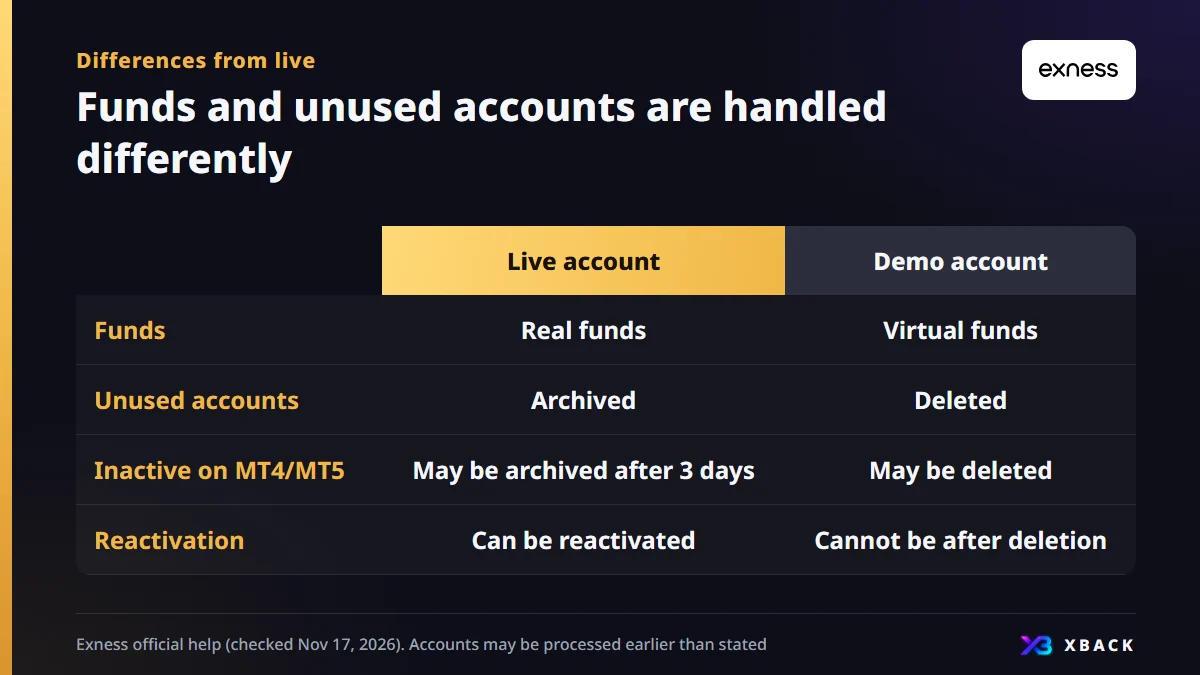
The official help describes a demo account as an account for trading various instruments with virtual funds. It is said to suit practicing strategies.
| Item | Live account | Demo account |
|---|---|---|
| Funds | Real funds | Virtual funds |
| Accounts no longer used | Not deleted; archived | Not archived; deleted |
| Inactive on MT4/MT5 | May be archived after 3 days of inactivity | May be deleted (number of days not stated) |
| Reactivation | Can be reactivated | Cannot be reactivated after deletion |
How trading conditions are described differs between articles. "Real and demo accounts" says "similar", while "Do demo trading accounts use real money?" says "identical".
Both are official wordings. The official help does not describe differences by condition, such as execution or swaps. Check actual execution on a live account.
How to open an Exness demo account
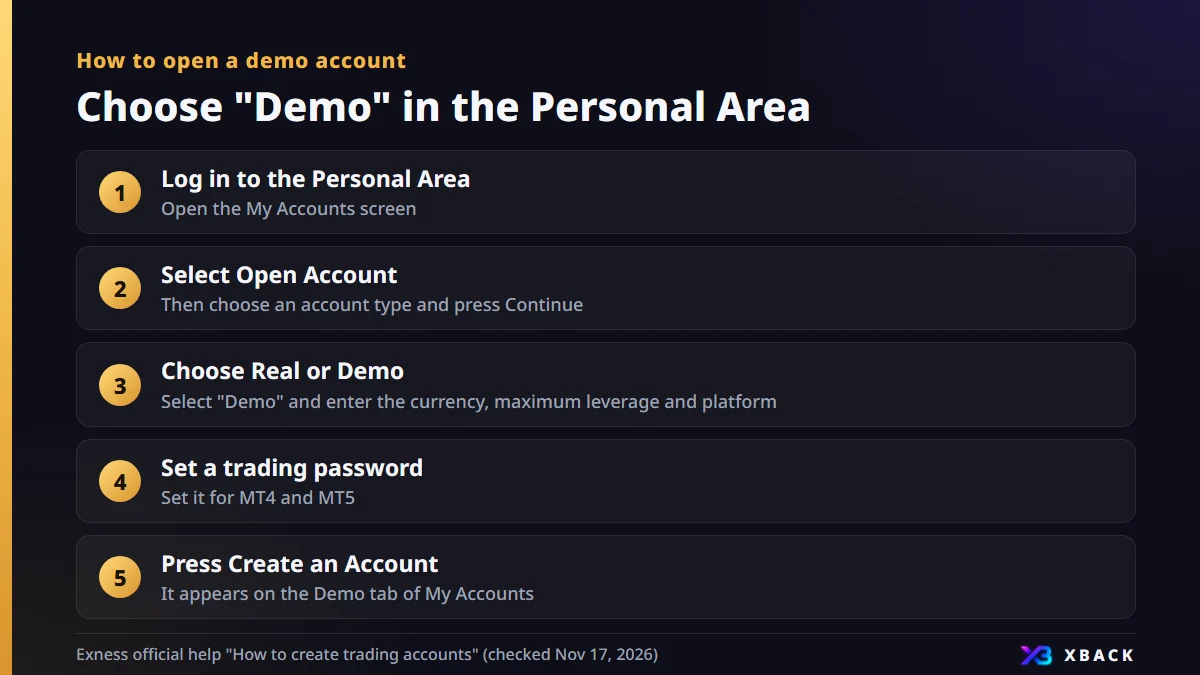
You create a demo account from the Personal Area (PA). The steps in the official help "How to create trading accounts" are as follows.
- 1
Log in to the Personal Area
Open the My Accounts screen
- 2
Select Open Account
Then choose an account type and press Continue
- 3
Choose Real or Demo
Select "Demo" and enter the currency, nickname, maximum leverage and platform
- 4
Set a trading password
Set it for MT4 and MT5. Only Pro accounts also let you choose an execution type
- 5
Press Create an Account
The new account appears on the Demo tab of My Accounts
- Available account types: Standard, Standard Cent, Pro, Zero and Raw Spread (5 types). Demo accounts are not available for Standard Cent
- Limit: per PA, 100 MT4 demo accounts and 100 MT5 demo accounts (for each account type except Standard Cent)
- The account type and the trading server assigned to it cannot be changed after creation
- The official help says you can also create a demo account in the Exness Trade app
For how to choose an account type, see our related column "Differences between Exness account types". For the overall opening process, see "How to open an Exness account".
How to add or change the balance of an Exness demo account
When the balance runs down, you can reset it on the same account without creating a new one. These are the steps in the official help "How to top up a demo account".
- 1
Log in to the Personal Area
Open My Accounts and select the Demo tab
- 2
Press Set Balance on the target account
Select the demo account whose balance you want to change
- 3
Enter the balance you want
You can only set an amount in the account currency. Higher or lower than the current balance is fine
- 4
Confirm with Set Balance
The new balance is set
The official help we checked does not state the initial balance or the maximum you can set. Follow the on-screen guidance. We also found no description of how to change leverage afterward.
Expiry and deletion conditions for an Exness demo account
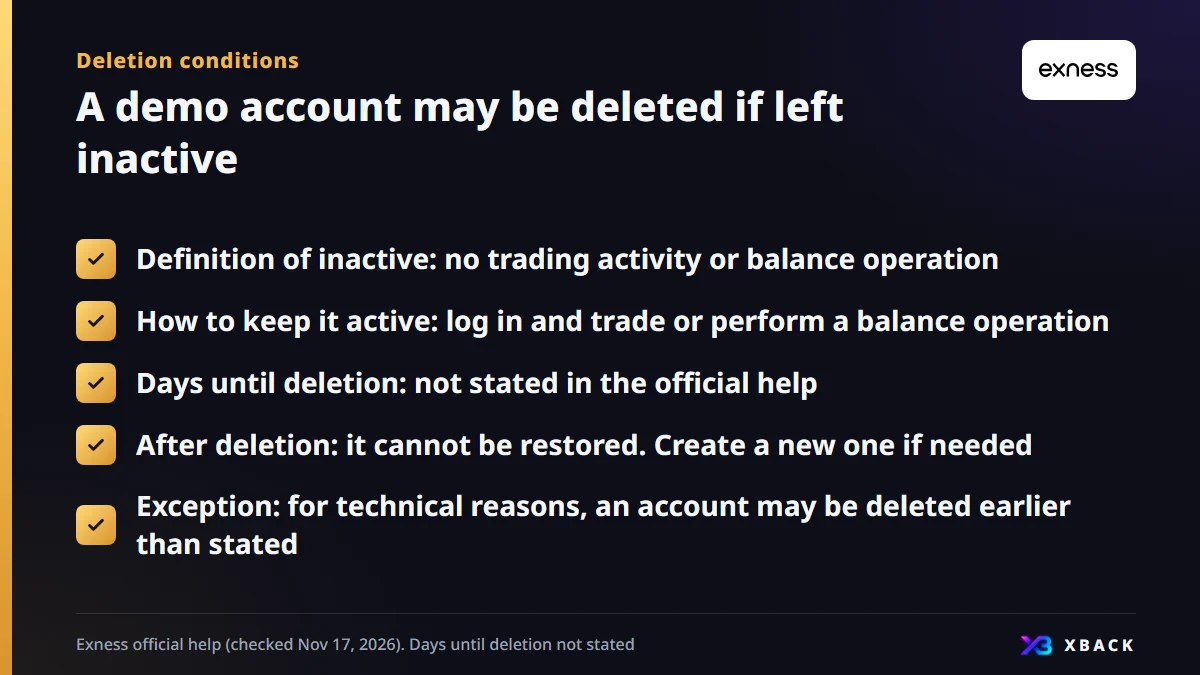
The official help gives no expiry date or number of days for demo accounts. What it states is that an account may be deleted if left inactive.
- Definition of inactive: no trading activity or balance operation
- How to keep it active: log in and trade or perform a balance operation. The help does not state whether Set Balance counts as a balance operation
- Days until deletion: not stated in the official help
- After deletion: it cannot be restored. Create a new one if needed
- Exception: for technical reasons, an account may be deleted earlier than stated
We could not find a dedicated "reset" operation. If you only need the balance back, you can use Set Balance. To start over with a fresh account, create a new demo account.
What to check before moving to a live account
Right after registration, a live Standard MT5 account is also created automatically. If you want the account to qualify for cashback via XB, you need to check before you start using the live account.
- The conditions for opening via XB and the rebate amounts are on the broker page. This article does not list rebate amounts
- If you already have an Exness account: the procedure XB confirmed (as of November 18, 2026) has two options. One is to request a "partner change" through chat in the Personal Area
- A partner change may take up to 3 business days for approval, and you then create a new account after approval
- The other is to create a new account through the XB link with a different email address. Exness allows a new account with a different email address, and since there is no review to wait for, this can sometimes be faster
- If you are unsure, please ask through our official LINE
A demo account is for practicing and checking live account conditions. Demo results do not guarantee execution or profit and loss on a live account.
Eligibility and rebate amounts by account type are on the Exness broker page.
See Exness detailsFAQ
Q.Where do I open an Exness demo account?
In My Accounts in the Personal Area, select Open Account, choose an account type and specify "Demo". A demo Standard MT5 account is also created automatically when you register.
Q.Does an Exness demo account expire?
The official help gives no expiry date. An account may be deleted if left inactive, and the number of days is not stated either. Trade or perform a balance operation regularly.
Q.Can I reset an Exness demo account?
We could not find a dedicated reset operation. You can set the balance again with Set Balance on the Demo tab, higher or lower than the current balance. To start over completely, create a new account.
Q.Which account types can I open an Exness demo account for?
Standard, Pro, Zero and Raw Spread, but not Standard Cent. Standard Cent is available only as a live account. The account type cannot be changed after creation.
Q.Are Exness demo and live accounts on the same conditions?
The official help words this in two ways: "similar" and "identical". Differences in execution or swaps are not described in what we checked. Check live account conditions separately.
Sources
- Exness Help "Real and demo accounts" (checked 2026-11-17)
- Exness Help "How to top up a demo account" (checked 2026-11-17)
- Exness Help "Are demo accounts available for all account types?" (checked 2026-11-17)
- Exness Help "Do demo trading accounts use real money?" (checked 2026-11-17)
- Exness Help "How to create trading accounts" (checked 2026-11-17)
- Exness Help "How many trading accounts can I create?" (checked 2026-11-17)

This article is for information purposes only and is not investment advice. Conditions may change, so please check each broker's official page for the latest information. Offshore FX and CFD trading carries a risk of losses exceeding your principal.