DecodeFX Demo Account: How to Open It, Settings and Expiry
Want to try a DecodeFX demo account but unsure how to open one, or how long it lasts?
The short answer: you create a demo account by choosing a currency, leverage and starting balance on the sign-up form. DecodeFX doesn't state any expiry (checked November 17, 2026).
Below are the four sign-up steps and what's worth testing on a demo before you go live.
Key takeaways
- The English FAQ says DecodeFX demo accounts let you choose currency, leverage and starting balance at sign-up.
- No expiry period for the demo account is stated on the official Japanese page, FAQ or PDF terms.
- Eligible accounts and rebate amounts for XB cashback are on the broker page.
Summary: you can choose settings for a DecodeFX demo account, and no expiry is stated officially
- The official Japanese page has a "Try demo" button. It leads to a demo screen in the Client Portal
- The English FAQ says you can choose currency, leverage and starting balance on the sign-up form. The selectable range is not stated
- The English FAQ says demo accounts can "usually be created and reset freely". We could not find any expiry period
- The official FAQ says MT4 and MT5 can be created as either live or demo accounts
DecodeFX demo account terms: selectable settings and items not stated
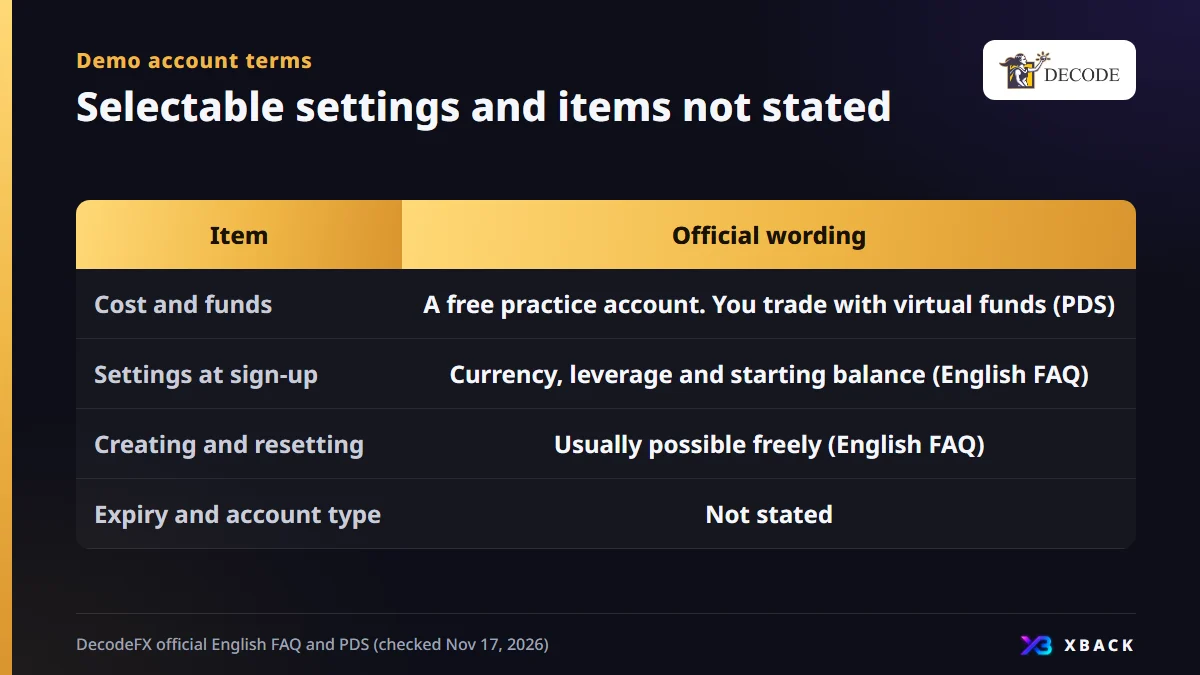
The demo account terms are covered in the English FAQ and the PDF terms (in English). The Japanese page only has a "Try demo" button on the trading accounts page.
| Item | Official wording |
|---|---|
| Cost and funds | A free practice account. You trade with virtual funds (PDS) |
| Settings you can choose at sign-up | Currency, leverage and starting balance (English FAQ) |
| Creating and resetting | Usually possible freely (English FAQ) |
| Expiry and account type | Not stated |
The PDS says the demo account replicates the actual live trading platform. The company recommends trying it before opening a live account.
How to open a DecodeFX demo account
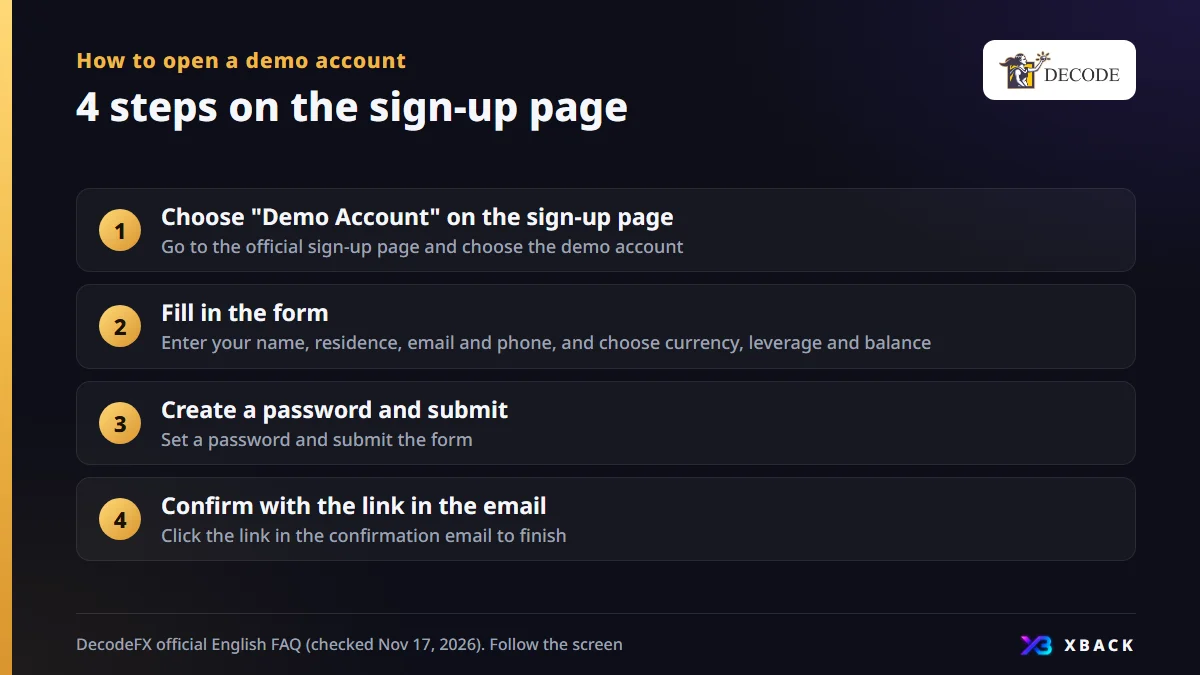
Here are the steps from the English FAQ "How do I open a Demo account?", summarized. Screen wording may change, so follow what the actual screen tells you.
- 1
Choose "Demo Account" on the sign-up page
Go to the sign-up page on the official site and choose the demo account
- 2
Fill in the form
Enter your name, country of residence, email and phone number, and choose currency, leverage and starting balance
- 3
Create a password and submit
Set a password and submit the form
- 4
Confirm with the link in the email
Click the link in the confirmation email to finish
The "Try demo" button on the Japanese page links to the demo screen of the Client Portal. For opening a live account, see our related column "DecodeFX account opening".
What about the DecodeFX demo account's expiry and starting balance?
None of the official pages, FAQs or PDF terms we checked mention an expiry. If you plan to use the demo for a long time, ask DecodeFX support first.
- Starting balance: you can choose it on the sign-up form. The range of amounts is not stated officially
- Reset: the English FAQ says demo accounts can "usually be created and reset freely". Where to do it is not stated
- Adding funds: whether you can add them yourself is not stated
Can you use a DecodeFX demo account on MT4 and MT5?
The official FAQ says that for MT4 and MT5 you can "create a live or demo account and start trading". Downloading and installing are free.
- The Japanese page lists MT4, MT5, WebTrader and the app. The English page lists DecodeFX App, MT5, MT4 and API, so the wording differs
- The official FAQ says you can practice on a demo account with MT4 and MT5
- The server name to log in with a demo account was not stated on the public pages we checked
- The company presents EAs as a feature of MT4 and MT5
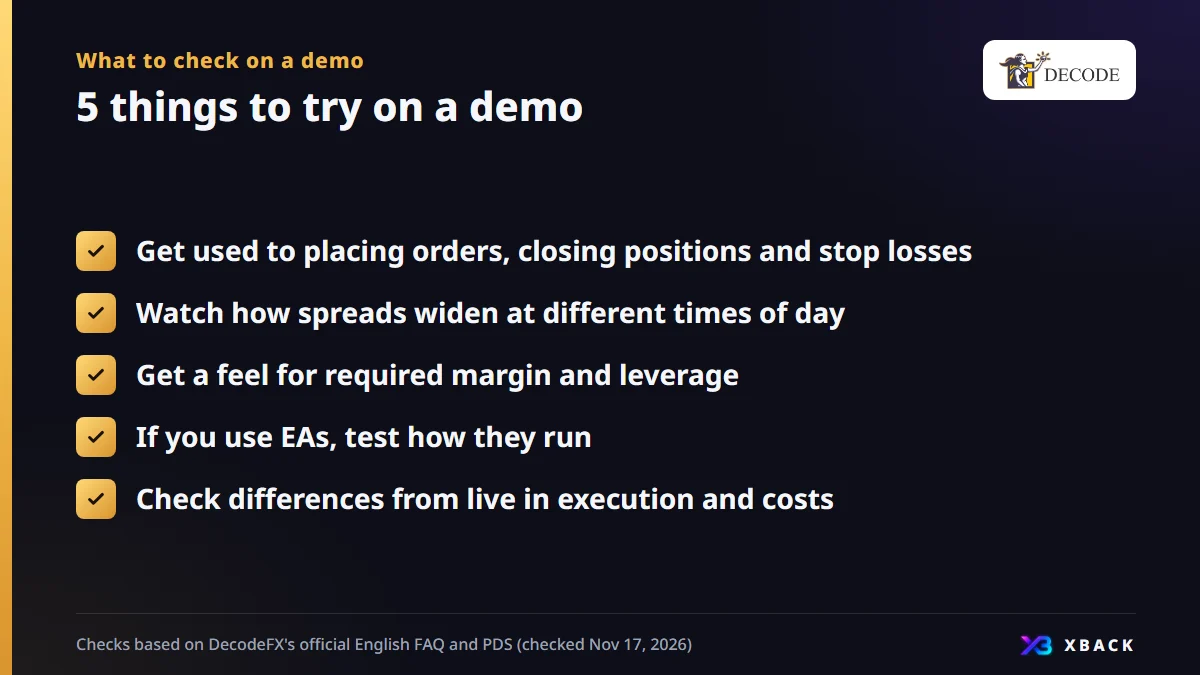
What to check on a demo, and how it differs from a live account
The English FAQ says a live account uses real funds and profit and loss are reflected in your balance. It also says spreads and fees reflect actual trading conditions.
- Get used to placing orders, closing positions and setting stop losses
- Watch how spreads widen at different times of day
- Get a feel for required margin and leverage
- If you use EAs, test how they run
- Check the differences from a live account in execution and costs
For live accounts, the minimum deposit is 100 USD for STD and PRO and 1 USD for CENT. The maximum leverage is shown as 1:2000 for all three account types listed on the official page. A demo may not use the same values. For a comparison, see "DecodeFX account types".
Moving to a live account and XB cashback
- The English FAQ says a live account requires identity verification before trading. No identity verification is mentioned for demo
- Nothing says a demo account becomes a live account as is. For live, you enable an account type separately
- A live account opened through the XB link is eligible for cashback
XB's cashback started on November 18, 2026. On an STD account, each round-turn lot of EUR/USD returns 18 USD to your trading account. Amounts for each account are in DecodeFX cashback.
The XB account-opening button is on the DecodeFX broker page.
See DecodeFX detailsFAQ
Q.How do I open a DecodeFX demo account?
According to the English FAQ, choose "Demo Account" on the sign-up page and enter your name, country of residence, email and phone number, plus currency, leverage and starting balance. Create a password, submit, and click the link in the confirmation email to finish.
Q.Does a DecodeFX demo account have an expiry?
The official Japanese page, English FAQ and PDF terms we checked do not state any expiry. Ask official support whether one applies (checked on November 17, 2026).
Q.Is the DecodeFX demo account free?
The PDS says a demo account is provided as a free practice account. Because the document is dated June 21, 2021, check the current terms on the site.
Q.Can I choose leverage and starting balance on a DecodeFX demo account?
The English FAQ says you can choose currency, leverage and starting balance at sign-up, and that demo accounts can usually be reset freely.
Q.Can I use a DecodeFX demo account on MT4 and MT5?
The official FAQ says that for both MT4 and MT5 you can create a live or demo account and start trading. Downloading and installing is free.
Sources
- DecodeFX official page "FAQ" (English (India); demo account steps and differences) (checked 2026-11-17)
- DecodeFX official page "Trading accounts" (Japanese; "Try demo") (checked 2026-11-17)
- DecodeFX official page "FAQ" (Japanese) (checked 2026-11-17)
- DecodeFX official page "Platform overview" (Japanese) (checked 2026-11-17)
- Decode Global Limited Product Disclosure Statement (dated June 21, 2021; English) (checked 2026-11-17)

This article is for information purposes only and is not investment advice. Conditions may change, so please check each broker's official page for the latest information. Offshore FX and CFD trading carries a risk of losses exceeding your principal.