Monaxa Demo Account: How to Open One, Expires After 45 Days Idle, $10,000 Virtual Balance

Want to try a Monaxa demo account before going live, but unsure about the steps, the expiry and the available settings?
On the official Japanese page (checked on November 19, 2026), the demo account is free and needs no identity verification or deposit. You open it from the member page, and only the MT5 Pro account type is available.
This article covers the steps to open one, the settings you can choose, the expiry and adding funds, and how it differs from a live account.
Key takeaways
- The Monaxa demo account is free and needs no identity verification or deposit. You open it from the member page.
- Only Pro is available. The official display is up to 2 accounts, a virtual balance up to $10,000, and expiry after 45 days without activity.
- You can add funds with Add Demo Funds. Open a live account separately, via XB.
Short answer: the Monaxa demo account is free, Pro only, and expires after 45 days without activity
- The demo account is free. No deposit or identity verification (KYC) is needed; you just register with an email address and password
- You open it from “Accounts → Open Demo Account” in Monaxa Portal
- Pro is the only account type for the demo. The official Japanese page says up to 2 accounts per person
- The virtual balance is up to $10,000 per account, leverage is up to 1:2000, and the base currencies are USD, EUR and GBP
- It expires if you do not use it for 45 days. Even after expiry, you can create a new account
- If the balance runs low, you can add funds from “Add Demo Funds” in the Portal
Monaxa demo account conditions: basic information on the official page
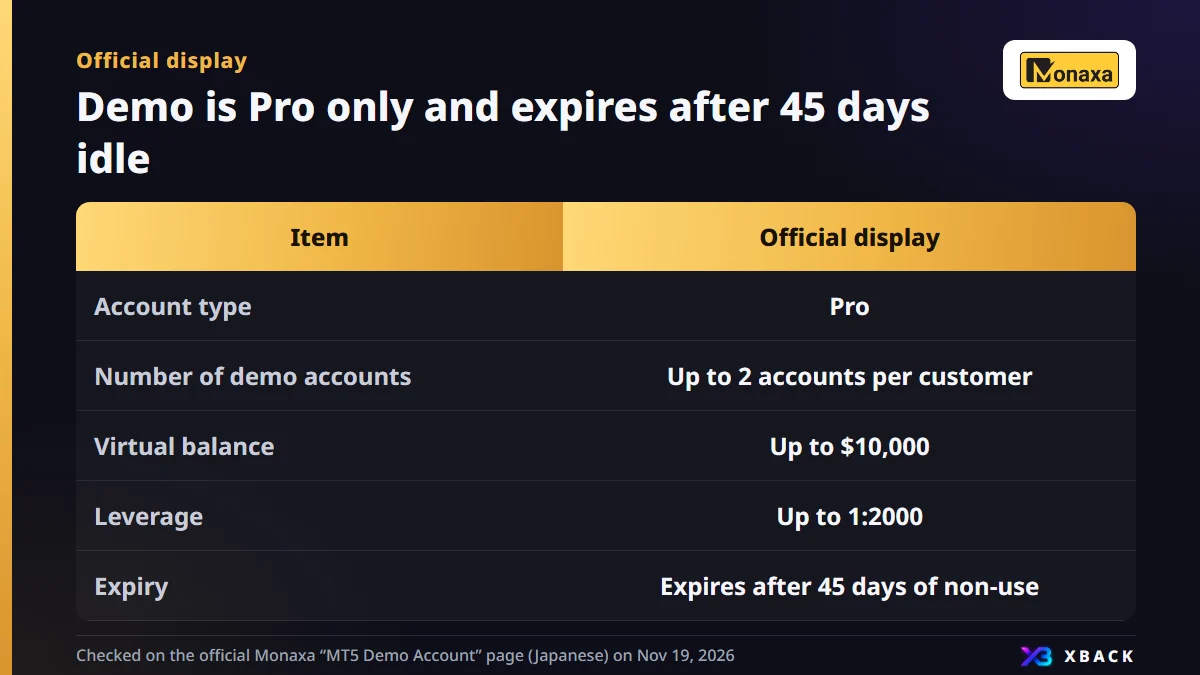
The official Japanese page “MT5 Demo Account” lists the basic information for the demo account.
| Item | Official display |
|---|---|
| Account type | Pro |
| Number of demo accounts | Up to 2 accounts per customer |
| Virtual balance | Up to $10,000 |
| Base currency | USD, EUR, GBP |
| Leverage | Up to 1:2000 |
| Expiry | Expires after 45 days of non-use |
| Cost | Free |
The FAQ on the same page says that account types other than Pro cannot be used as demo accounts. The excluded types are Standard, Cent, Boosted, Copy Trade, PAMM and Zero.
How do you open a Monaxa demo account?
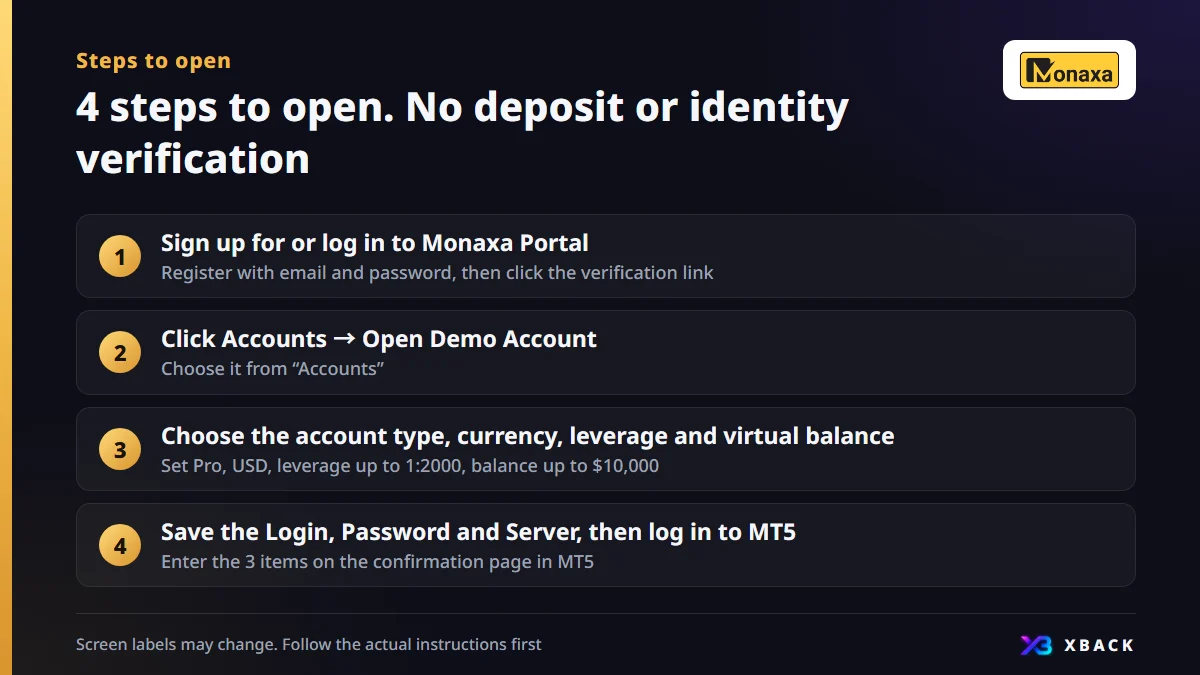
We summarized the steps from the official Japanese page into 4. Screen labels may change, so follow the actual instructions first.
- 1
Sign up for or log in to Monaxa Portal
Register your email address and password from Sign Up and click the verification link in the confirmation email. If you already have an account, log in
- 2
Click Accounts → Open Demo Account
Go to “Accounts” in the Portal and choose “Open Demo Account”
- 3
Choose the account type, currency, leverage and virtual balance
Set the account type to Pro, the base currency to USD, leverage up to 1:2000 and the virtual balance up to $10,000
- 4
Save the Login, Password and Server, then log in to MT5
Save the 3 items shown on the confirmation page and enter them in MT5. Use the server name shown in the Portal
You need an email address, a password and a Windows, iPhone or Android device. The official page says no deposit, payment details or identity verification are required.
If you cannot find it in MT5, the official page says that searching the server list for “Monaxa” shows the options. If you see “Invalid account”, check that you chose a demo server, not a live one.
What are the Monaxa demo account expiry and funding rules?
The official page says an MT5 demo account expires after 45 days of inactivity. The period counts days without activity, not days since opening.
- Expiry: it expires after 45 days of non-use. After that, you can click “Open Demo Account” in the Portal to create a new one
- Adding funds: find the demo account in “Accounts Overview” in the Portal and click the yellow “Add Demo Funds”. The support FAQ also says you can adjust it from the deposit and withdrawal screen
- Balance limit: you can set up to $10,000 per account when opening. With 2 accounts, the total is up to $20,000
- If you forget the password: in Accounts, choose “Change Password” or “Reset Password” for the demo account
The official pages we checked do not state a limit on how much you can add at once with Add Demo Funds.
How is a Monaxa demo account different from a live account?
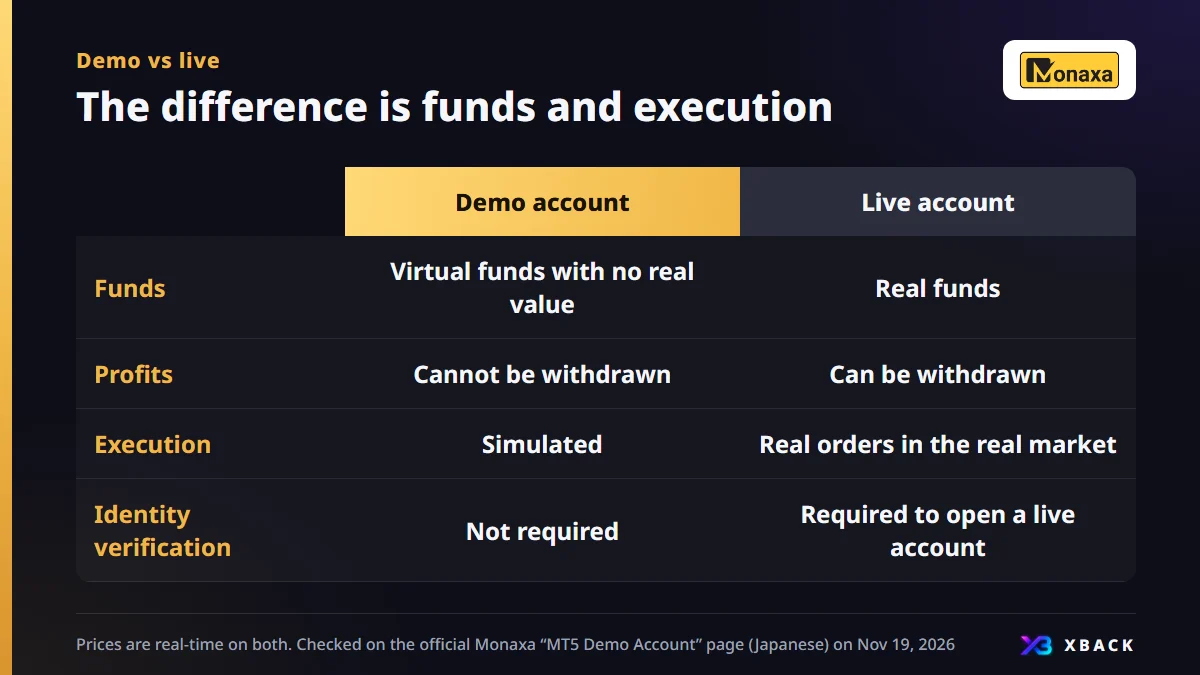
The official page explains that market prices are real-time for both demo and live. The differences are in funds and order execution.
| Item | Demo account | Live account |
|---|---|---|
| Funds | Virtual funds with no real value | Real funds |
| Prices | Real-time | Real-time |
| Profits | Cannot be withdrawn | Can be withdrawn |
| Execution | Simulated. Slippage and rejections may not be reflected | Real orders in the real market |
| Identity verification | Not required | Required to open a live account |
| Copy Trading and PAMM | Not available | Available with a funded live account |
The official page says good demo results do not guarantee live trading results. It positions the demo as a place to practice operations and build habits.
- The demo uses Pro conditions. You cannot try the spreads and commissions of Standard or Zero on a demo
- The markets you can trade are FX, commodities, stock indices, stocks, ETFs and crypto assets (all CFDs). Instruments may differ by account type
- The Japanese page we checked had no mention of an MT4 demo account. The official demo guidance covers MT5
Moving from demo to a Monaxa live account: notes and XB cashback
The official flow is to complete identity verification in the Portal, open a live account, and log in to MT5 with the live login details. The minimum deposit for Standard starts at $15.
- A demo account does not turn into a live account. You open the live account separately
- XB cashback applies to trades on live accounts opened via the XB link (per the broker page). Nothing is stated about demo trades
- If you registered directly on the official site for the demo, the official pages do not say whether you can switch to XB later, and we have not confirmed it. If you are unsure, ask us on LINE
- The steps to open a live account and identity verification are covered in a separate column
Eligible accounts, rebate amounts by account type and the account opening button are on the Monaxa broker page.
See Monaxa detailsFAQ
Q.How do I open a Monaxa demo account?
Sign up for or log in to Monaxa Portal. Click “Open Demo Account” from “Accounts”. Choose Pro as the account type, then the currency, leverage and virtual balance. The Login, Password and Server for MT5 are then shown (checked on November 19, 2026).
Q.Does a Monaxa demo account expire?
Yes. The official page says an MT5 demo account expires after 45 days of inactivity. After expiry, you can open a new demo account in the Portal (checked on November 19, 2026).
Q.Is the Monaxa demo account free? Is identity verification required?
It is free. The official page says no deposit is needed and no identity verification (KYC) is required to open a demo. You just register with your email address and password and verify the email.
Q.How much is the virtual balance of a Monaxa demo account? Can I increase it?
You can set up to $10,000 per account when opening. If the balance runs low, you can add funds. The official page explains pressing “Add Demo Funds” in “Accounts Overview” in the Portal.
Q.Can I use Standard or Zero on a Monaxa demo account?
No. The official page says only Pro is available for the demo. Standard, Cent, Zero and others cannot be used as demo accounts.
Q.Can I withdraw profits from a Monaxa demo account?
No. The official page says demo funds are virtual with no real value, and profits cannot be withdrawn.
Sources
- Monaxa Official Page: MT5 Demo Account (Japanese) (checked 2026-11-19)
- Monaxa Official Help & FAQ (Trading, MetaTrader) (checked 2026-11-19)
- Monaxa Official Page: Account Types (Japanese) (checked 2026-11-19)

This article is for information purposes only and is not investment advice. Conditions may change, so please check each broker's official page for the latest information. Offshore FX and CFD trading carries a risk of losses exceeding your principal.